How to Create and Get Approval for RCS Message Templates 2026
Learn how to create, write, and get approval for RCS message templates in 2026. Includes 20+ examples, rejection fixes, and step-by-step submission guide.
How to Create and Get Approval for RCS Message Templates
If
you want to send promotional messages, notifications, or alerts to your
customers using RCS Business Messaging, you need pre-approved message
templates. Just like WhatsApp Business templates, RCS templates must be
reviewed and approved before you can use them for outbound messaging — and
getting them wrong means delays, rejections, and missed opportunities.
The
good news: once you understand exactly how RCS message templates work, what
makes them get approved (and rejected), and how to write them correctly, the
approval process becomes straightforward. Most well-written templates get
approved within 24-72 hours.
In this comprehensive guide, we'll cover everything — from understanding what RCS templates are and why they need approval, to writing your first template, submitting it, and handling rejections. We'll also include 20+ real-world template examples across different industries that you can adapt and use immediately.
An
RCS message template is a structured, pre-approved message format that
businesses use to communicate with their customers at scale. Templates are
required for any outbound business-initiated RCS messaging — meaning messages
that your business sends first, rather than replies to customers who messaged
you.
Templates ensure that business messages are professional, relevant, and compliant with carrier and platform policies. They prevent spam, protect users, and help businesses maintain brand consistency across all customer communications.
Why Are RCS Message Templates Required?
● Protect
users from spam and unsolicited messages
● Ensure
business messages meet content and formatting standards
● Allow
platforms to verify that messages are legitimate and non-deceptive
● Give
carriers confidence that RCS is used responsibly by businesses
● Maintain the trust and quality of the RCS ecosystem overall
RCS Templates vs WhatsApp Templates vs SMS
|
Feature |
SMS |
WhatsApp |
RCS |
|
Template
Approval Required |
❌ No |
✅ Yes |
✅ Yes |
|
Rich Media in
Templates |
❌ No |
✅ Yes |
✅ Yes |
|
Interactive
Buttons |
❌ No |
✅ Yes |
✅ Yes |
|
Variable
Placeholders |
Basic |
✅ Full |
✅ Full |
|
Approval Time |
N/A |
24-48 hours |
24-72 hours |
|
Image/Video
Support |
❌ No |
✅ Yes |
✅ Yes |
|
Branded
Sender |
❌ No |
✅ Yes |
✅ Yes |
|
Template
Categories |
N/A |
Utility/Mktg |
Multiple types |
|
Rejection
Rate (avg) |
N/A |
~15% |
~10-20% |
RCS Business Messaging supports several distinct template types, each designed for different use cases. Understanding which type to use for your message is the first step to a successful approval.
1. Transactional Templates
Transactional
templates are triggered by a specific customer action or event. They are the
easiest to get approved because they're always relevant and expected by the
recipient.
● Examples: Order confirmations, shipping updates, payment receipts,
account alerts, OTP codes, booking confirmations
● Approval
difficulty: Easy — highest approval rate
● Personalization: High — variables for names, order numbers, amounts
2. Promotional / Marketing Templates
Promotional
templates are used to send offers, discounts, product announcements, and sales
campaigns. They require explicit user opt-in consent and are reviewed more
strictly.
● Examples: Sale announcements, new product launches, discount codes,
loyalty reward notifications
● Approval
difficulty: Medium — requires clear
opt-in disclosure and opt-out option
● Personalization: Medium — can include names and custom offer details
3. Utility / Service Templates
Utility
templates cover service-related messages that aren't strictly transactional but
provide value or information to the customer.
● Examples: Subscription renewal reminders, service maintenance
alerts, policy update notices, monthly statements
● Approval
difficulty: Easy to Medium
● Personalization: Medium
4. Authentication Templates
Authentication
templates are used for one-time passwords (OTPs), verification codes, and
account security alerts. They have the highest approval priority and fastest
review times.
● Examples: Login OTP, password reset codes, two-factor
authentication alerts, new device login notifications
● Approval
difficulty: Very Easy — fastest approval
● Personalization: High — dynamic code variables
5. Interactive / Rich Card Templates
These
templates include rich media elements — images, carousels, quick reply buttons,
and call-to-action buttons. They require that all media assets meet platform
specifications.
● Examples: Product showcase carousels, appointment booking cards,
feedback surveys, location-based offers
● Approval
difficulty: Medium — media assets
reviewed separately
● Personalization: High
|
Template
Type |
Approval Speed |
Opt-in Required |
Rich Media |
|
Transactional |
24-48 hours |
Implied |
Optional |
|
Promotional |
48-72 hours |
✅ Mandatory |
✅ Supported |
|
Utility/Service |
24-48 hours |
Implied |
Optional |
|
Authentication |
12-24 hours |
Not required |
❌ Usually not |
|
Rich
Card/Interactive |
48-72 hours |
✅ For promos |
✅ Required |
How to Write an RCS Message Template (Rules
+ Best Practices)
Writing a good RCS message template is part art, part compliance. Follow these rules strictly and your approval rate will be significantly higher.
The Golden Rules of RCS Template Writing
● Rule 1 —
Be Clear and Specific: State exactly
what the message is about in the first sentence. Reviewers should immediately
understand the purpose.
● Rule 2 —
Use Variables Correctly: Dynamic content
must be placed in double curly braces: {{customer_name}}, {{order_id}},
{{amount}}. Never hardcode information that changes per recipient.
● Rule 3 —
Include an Opt-Out: For promotional
templates, always include a clear opt-out mechanism: 'Reply STOP to
unsubscribe' or a dedicated opt-out button.
● Rule 4 —
No Misleading Content: Templates must be
honest and accurate. Exaggerated claims ('Best deal EVER!'), false urgency
('Only 1 left!' when untrue), or deceptive offers will be rejected.
● Rule 5 —
Match Category to Content: Submit your
template under the correct category. A promotional message submitted as
'Transactional' will be rejected.
● Rule 6 —
No Sensitive Data: Never include full
credit card numbers, passwords, national ID numbers, or other sensitive
personal data in templates.
● Rule 7 — Professional Language: Use professional, clear language. Avoid ALL CAPS for entire messages, excessive exclamation marks, or informal slang unless your brand voice specifically calls for it.
Variable Placeholder Format
Most RCS platforms use double curly braces for variables. Here are the common variable types and correct formatting:
|
Variable
Type |
Format |
Example |
|
Customer Name |
{{customer_name}} |
Hello
{{customer_name}}, your order is confirmed. |
|
Order ID |
{{order_id}} |
Your order
{{order_id}} has been shipped. |
|
Amount |
{{amount}} |
Payment of
{{amount}} received successfully. |
|
Date/Time |
{{date}},
{{time}} |
Your
appointment is on {{date}} at {{time}}. |
|
OTP Code |
{{otp_code}} |
Your
verification code is {{otp_code}}. |
|
Link/URL |
{{tracking_url}} |
Track your
order: {{tracking_url}} |
|
Custom |
{{variable_name}} |
Use
descriptive names for reviewers. |
Here are real-world template examples across different industries and categories. These are formatted correctly with proper variables and opt-out language where required. Adapt them for your business and submit for approval.
Transactional Templates
|
Order
Confirmation [Category: E-Commerce / Retail] |
|
Hello
{{customer_name}}! Your order #{{order_id}} has been confirmed. Total:
{{amount}}. Estimated delivery: {{delivery_date}}. Track your order:
{{tracking_url}} |
|
Shipping
Update [Category: E-Commerce / Logistics] |
|
Great
news, {{customer_name}}! Your order #{{order_id}} has been shipped via
{{courier_name}}. Tracking number: {{tracking_id}}. Expected delivery:
{{delivery_date}}. Track live: {{tracking_url}} |
|
Payment
Received [Category: Finance / Banking] |
|
Hi
{{customer_name}}, we've received your payment of {{amount}} for invoice
#{{invoice_id}} on {{date}}. Your account balance is now {{balance}}. Thank
you for your payment! |
|
Appointment
Confirmation [Category: Healthcare] |
|
Hello
{{patient_name}}, your appointment with Dr. {{doctor_name}} is confirmed for
{{date}} at {{time}} at {{clinic_name}}. Location: {{address}}. To
reschedule, reply RESCHEDULE. |
|
Booking
Confirmation [Category: Travel / Hospitality] |
|
Hi
{{guest_name}}! Your booking at {{hotel_name}} is confirmed. Check-in:
{{checkin_date}}, Check-out: {{checkout_date}}. Booking ID: {{booking_id}}.
View details: {{booking_url}} |
Authentication Templates
|
OTP
Verification [Category: All Industries —
Authentication] |
|
Your
{{company_name}} verification code is: {{otp_code}}. This code expires in
{{expiry_time}} minutes. Do not share this code with anyone. If you did not
request this, please ignore. |
|
New Device
Login Alert [Category: Banking / Tech / Any] |
|
Security
Alert: A new login to your {{company_name}} account was detected from
{{device_type}} in {{location}} on {{date}}. If this was not you, secure your
account immediately: {{security_url}} |
|
Password
Reset [Category: All Industries — Security] |
|
Hi
{{user_name}}, you requested a password reset for your {{company_name}}
account. Use this link to reset: {{reset_url}}. This link expires in 30
minutes. Ignore if you didn't request this. |
Promotional / Marketing Templates
|
Flash Sale
Announcement [Category: E-Commerce — Promotional] |
|
Hi
{{customer_name}}! Exclusive offer just for you: Get {{discount_percent}}%
OFF on all {{category}} items today only! Use code: {{promo_code}} at
checkout. Shop now: {{shop_url}}. Reply STOP to unsubscribe. |
|
Loyalty
Reward [Category: Retail / Loyalty Program] |
|
Congratulations
{{customer_name}}! You've earned {{points}} reward points. Your total is now
{{total_points}} points — worth {{reward_value}} in savings! Redeem now:
{{rewards_url}}. Reply STOP to opt out. |
|
New
Product Launch [Category: E-Commerce — Marketing] |
|
Hi
{{customer_name}}, we just launched something you'll love! Introducing
{{product_name}} — {{short_description}}. Early bird price: {{price}}. Be
first: {{product_url}}. Reply STOP to unsubscribe. |
|
Abandoned
Cart Recovery [Category: E-Commerce — Recovery] |
|
Hi
{{customer_name}}, you left something behind! Your cart with {{item_count}}
item(s) worth {{cart_value}} is waiting. Complete your purchase:
{{cart_url}}. Need help? Reply HELP. Reply STOP to opt out. |
Utility / Service Templates
|
Subscription
Renewal Reminder [Category: SaaS / Subscriptions] |
|
Hi
{{customer_name}}, your {{service_name}} subscription expires on
{{expiry_date}}. Renew now to avoid interruption: {{renew_url}}. Questions?
Contact us at {{support_number}}. |
|
Account
Statement Ready [Category: Banking / Finance] |
|
Hello
{{customer_name}}, your {{account_type}} statement for {{month}} {{year}} is
ready. Total transactions: {{transaction_count}}. View or download:
{{statement_url}}. Contact: {{helpline}} |
|
Service
Maintenance Alert [Category: Technology / Telecom] |
|
Important:
{{service_name}} will undergo scheduled maintenance on {{date}} from
{{start_time}} to {{end_time}} ({{timezone}}). Services may be temporarily
unavailable. We apologize for any inconvenience. |
|
Delivery
Attempt Failed [Category: Logistics / E-Commerce] |
|
Hi
{{customer_name}}, we attempted to deliver your order #{{order_id}} on
{{date}} but were unsuccessful. Please reschedule your delivery:
{{reschedule_url}} or collect from: {{pickup_location}}. |
Rich Card / Interactive Templates
|
Product
Recommendation Card [Category: E-Commerce — Rich Card] |
|
Hi
{{customer_name}}! Based on your recent purchase, we think you'll love:
{{product_name}} — {{product_description}}. Price: {{price}}. [Button: View
Product] [Button: Add to Cart] [Button: Not Interested]. Reply STOP to
unsubscribe. |
|
Appointment
Reminder with Actions [Category: Healthcare — Interactive] |
|
Reminder:
{{patient_name}}, you have an appointment with {{doctor_name}} tomorrow,
{{date}} at {{time}}. [Button: Confirm Attendance] [Button: Reschedule]
[Button: Cancel]. Location: {{clinic_address}} |
|
Feedback
Request [Category: All Industries — Survey] |
|
Hi
{{customer_name}}, how was your recent experience with {{company_name}}? Your
order #{{order_id}} was delivered on {{delivery_date}}. [Button: Excellent]
[Button: Good] [Button: Needs Improvement]. Your feedback matters! |
|
✅ Template Quality Check: Before
submitting, read your template aloud. It should sound like a natural,
professional communication from a real business. If it sounds like spam or an
unsolicited advertisement, revise it. The golden test: 'Would I be happy
receiving this message myself?' |
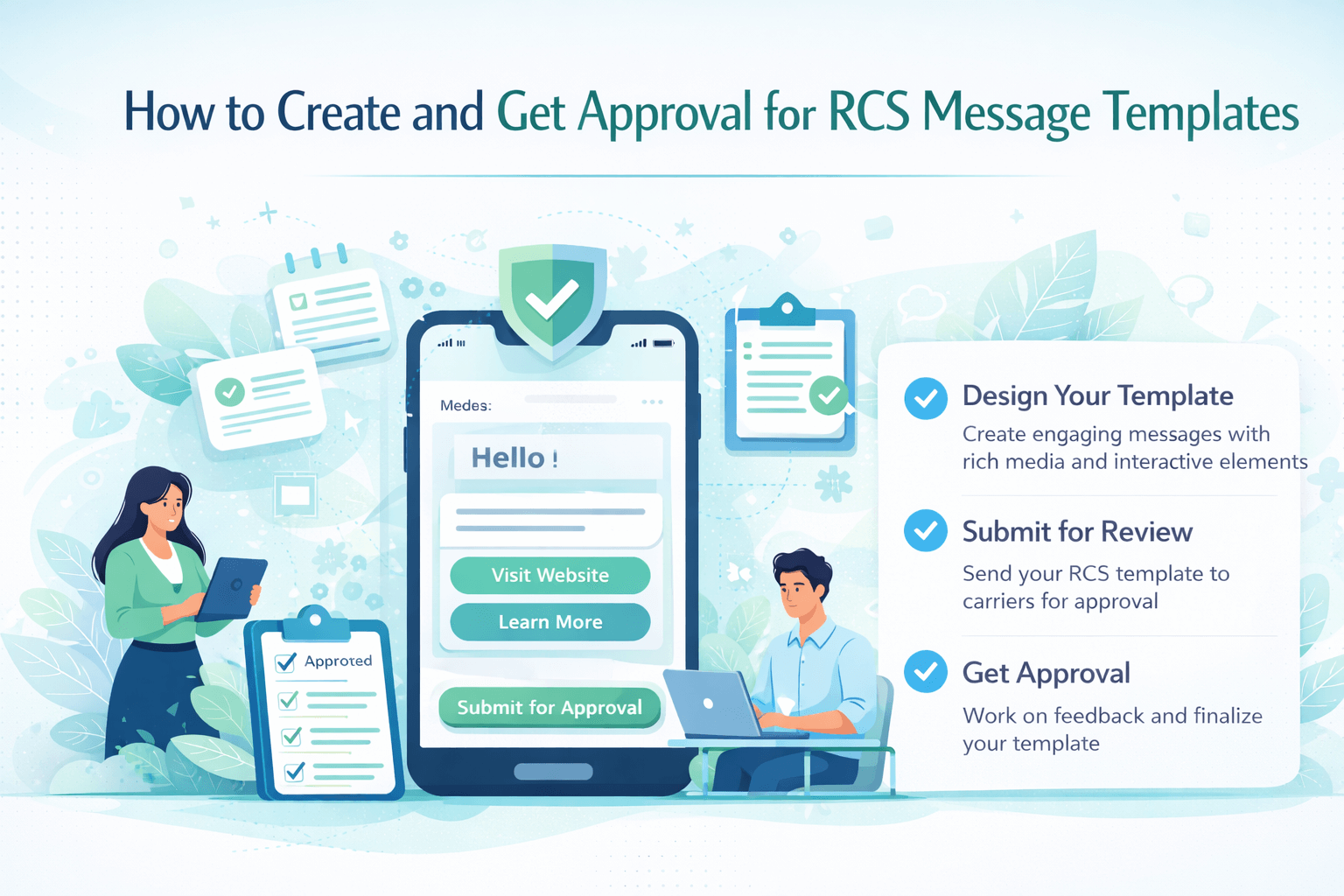
The exact submission process varies slightly by platform (Google RBM, Twilio, Sinch, etc.), but the general workflow is the same across all major providers. Here's the complete process:
|
1 |
Choose Your RCS Platform Select and
register with your RCS Business Messaging provider (Google RBM, Twilio,
Sinch, Gupshup, or MessageBird). Complete business verification — you'll need
a registered business, active website, and business phone number before
templates can be submitted. |
|
2 |
Access the Template Manager Log into your
platform dashboard and navigate to the Templates section. This is usually
found under 'Messaging' → 'Templates' or 'Content' → 'Message Templates'
depending on your provider. |
|
3 |
Select Template Type Choose the
correct template category: Transactional, Promotional, Authentication,
Utility, or Rich Card. This categorization affects the review criteria and
approval timeline. Choosing the wrong category is a common rejection cause. |
|
4 |
Write Your Template Content Enter your
template text following the rules in Section 4. Use {{variable_name}} format
for dynamic content. Add your buttons, rich card content, and media assets if
applicable. Preview how it will look on a phone screen. |
|
5 |
Add Media Assets (If Applicable) For rich card
templates, upload your images (minimum 1440x810px for 16:9 ratio, max 5MB)
and videos. Ensure all media is publicly accessible via HTTPS URL. Media is
reviewed separately and can be a reason for rejection. |
|
6 |
Provide Sample Values Most
platforms require you to provide example values for each variable. This helps
reviewers understand how the final message will look. Example:
{{customer_name}} → 'John', {{order_id}} → 'ORD-12345'. Be realistic and
professional. |
|
7 |
Submit for Review Click 'Submit
for Approval.' Your template enters a review queue. You'll receive an email
confirmation with a tracking ID. Most platforms provide a status dashboard
where you can monitor your submission. |
|
8 |
Wait for Approval / Handle Rejection Approval
typically takes 24-72 hours. Monitor your dashboard and email for updates. If
rejected, you'll receive a reason code — address the specific issue and
resubmit. Approved templates are immediately available for use. |
Understanding why templates get rejected is just as important as knowing how to write good ones. Here are the most common rejection reasons and exactly how to fix each one:
Rejection Reason 1: Wrong Template Category
Submitting
a promotional message as 'Transactional' is the single most common rejection
reason. Reviewers are trained to catch this immediately.
● How to
identify: Does your message promote a
product, offer a discount, or announce a sale? → Promotional. Is it triggered
by a customer action? → Transactional.
● Fix: Resubmit under the correct category. If your message has both transactional and promotional elements, split it into two separate templates.
Rejection Reason 2: Missing Opt-Out for Promotional Templates
Every
promotional template must include a clear, easy opt-out mechanism. This is
non-negotiable.
● What's
required: Either 'Reply STOP to
unsubscribe' text in the message body, or a dedicated [Unsubscribe] quick reply
button in the template.
● Fix: Add 'Reply STOP to unsubscribe.' at the end of all promotional templates. For rich cards, add an [Unsubscribe] button.
Rejection Reason 3: Misleading or Exaggerated Claims
Superlatives
and unverifiable claims trigger rejections. 'The best deal in India,'
'Guaranteed to lose 10kg,' or '100% risk-free' are red flags for reviewers.
● Fix: Replace superlatives with specific, verifiable facts. Instead of 'Amazing discount!', write '40% off all electronics — today only.'
Rejection Reason 4: Vague or Unclear Variable Names
Variables
named {{var1}}, {{text}}, or {{data}} give reviewers no context about what the
final message will contain — and are rejected.
● Fix: Use descriptive variable names: {{customer_first_name}}, {{order_total_amount}}, {{delivery_date_formatted}}.
Rejection Reason 5: Non-Compliant Media Assets
Rich
card templates with images that are the wrong dimensions, too large in file
size, or not accessible via public HTTPS URL will be rejected.
● Fix: Images must be HTTPS URL, 16:9 ratio, minimum 1440x810px, maximum 5MB. Test your image URLs are publicly accessible before submitting.
Rejection Reason 6: Sensitive Information in Template
Templates
containing full credit card numbers, social security numbers, passwords, or
other personally identifiable information are immediately rejected.
● Fix: Never include sensitive data in templates. For accounts, use only last 4 digits: 'Your card ending in {{last_4_digits}} was charged.'
Rejection Reason 7: Template Too Similar to Spam
Messages
with excessive exclamation marks (!!!), all-caps words (URGENT! FREE! CLICK
NOW!), or that offer unrealistic rewards trigger spam filters.
● Fix: Write in a professional, conversational tone. One exclamation mark maximum per template. Avoid words that trigger spam filters: FREE, WINNER, URGENT, ACT NOW, CLICK HERE.
Different RCS platforms have slightly different processes, interfaces, and requirements. Here's a quick guide for each major platform:
Google RCS Business Messaging (RBM)
● Access:
Google Cloud Console → Business Communications → your RCS agent → Content
● Template
name: Must be unique within your agent, lowercase, underscores only (e.g.,
order_confirmation_v1)
● Review:
Google's own team reviews templates — typically 1-3 business days
● Tip: Google is particularly strict about promotional templates — ensure opt-out is prominent
Twilio Messaging
● Access:
Twilio Console → Messaging → Content Template Builder
● Template
types: Twilio uses 'Content Types' — Text, Media, Call-to-Action, Quick Reply,
List Picker
● Review:
Automated + manual review, typically 24-48 hours for standard templates
● Tip: Twilio's Content Inspector tool shows a live preview — always use it before submitting
Sinch
● Access:
Sinch Dashboard → Channels → RCS → Message Templates
● Visual
builder: Sinch has a drag-and-drop template builder — easiest interface for
beginners
● Review:
Typically 24-72 hours
● Tip: Sinch offers pre-built industry templates you can use as starting points — browse these first
Gupshup
● Access:
Gupshup Dashboard → Channels → RCS → Templates
● Supports:
Text, Rich Card, Carousel, and List templates
● Review:
24-48 hours with Gupshup's approval team
● Tip: Gupshup's template library has 500+ pre-approved industry templates — starting from one of these saves significant time
MessageBird (Bird)
● Access:
Bird Dashboard → Channels → RCS → Content → Templates
● Multi-channel:
Templates created in Bird can be simultaneously submitted for WhatsApp, RCS,
and SMS
● Review:
24-48 hours
● Tip: Bird's omnichannel template approach is ideal if you're managing campaigns across multiple messaging platforms
RCS Template Do's and Don'ts — Quick
Reference
|
✅ DO — Best Practices |
❌ DON'T — Common Mistakes |
|
✓ Use descriptive variable names
({{customer_name}}) |
✗ Use vague variables ({{var1}}, {{text}}) |
|
✓ Include opt-out for all promotional
templates |
✗ Skip opt-out on marketing messages |
|
✓ Match template category to actual content
type |
✗ Submit promos as 'Transactional' to skip
review |
|
✓ Use professional, conversational tone |
✗ Use ALL CAPS or excessive exclamation
marks!!! |
|
✓ Provide realistic sample variable values |
✗ Leave sample values empty or use test data |
|
✓ Keep messages concise and focused |
✗ Write overly long messages with multiple
offers |
|
✓ Use HTTPS for all image/media URLs |
✗ Use HTTP or non-public media links |
|
✓ Test template rendering before submitting |
✗ Submit without previewing on a test device |
|
✓ Submit templates early (5+ days before
campaign) |
✗ Submit 24 hours before your launch date |
|
✓ Make specific, verifiable claims |
✗ Use unverifiable superlatives ('best ever',
'guaranteed') |
Pro Tips for Faster RCS Template Approval
Tip 1: Build a Template Library
Don't create templates only when you need them. Build a library of pre-approved templates for every common scenario in your business: welcome messages, order stages, payment notifications, support responses, and promotional formats. Having approved templates ready to use means zero lead time on future campaigns.
Tip 2: Version Your Templates
Name your templates with version numbers: order_confirmation_v1, order_confirmation_v2. This makes it easy to A/B test different versions of the same message, track which version performs best, and submit improvements without replacing approved templates that are already in use.
Tip 3: Use a Template for Every Customer Journey Stage
Map your customer journey and create a template for each stage: welcome → purchase confirmation → shipping update → delivery confirmation → review request → retention offer. Having a template ready for each touchpoint lets you automate your entire customer communication workflow.
Tip 4: Test With Yourself First
Before submitting any template for approval, send it to your own phone as a test message. Check: Does it read naturally? Are variables rendering correctly? Are buttons working? Does the rich card image display properly? Catching issues before submission saves the 24-72 hour approval wait time.
Tip 5: Monitor Your Approval Rate by Template Type
Track which template types and categories have the highest approval rates on your platform. If your authentication templates get approved in 24 hours but promotional templates take 72 hours, factor this into your campaign planning. Over time, you'll understand your platform's review patterns.
Tip 6: Keep a Rejection Log
Every time a template is rejected, document the template, the rejection reason, the fix you made, and the outcome. This rejection log becomes an invaluable reference — after a few months, you'll recognize patterns in what gets rejected and write templates that avoid those issues from the start.
Frequently Asked Questions (FAQs)
Here are the most common questions businesses ask about RCS message template creation and approval:
|
Q1: How long does RCS
template approval take? |
|
Most RCS
template approvals take 24-72 hours on major platforms. Authentication (OTP)
templates are typically approved fastest — sometimes within 12-24 hours.
Promotional templates with rich media may take up to 72 hours. Always submit
at least 5 business days before your campaign launch date to allow for
potential revisions. |
|
Q2: Can I edit a template
after it's been approved? |
|
No — approved
templates are locked. If you need to make changes, you must create a new
template version (e.g., order_confirmation_v2), submit it for re-approval,
and wait for the new version to be approved before using it. The original
approved template remains available while the new version is under review. |
|
Q3: How many templates can
I have approved at once? |
|
There is
generally no strict limit on the number of approved templates per business
account. Most platforms allow hundreds of templates. However, having too many
similar templates may trigger a review for duplicate content. Keep your
template library organized and delete obsolete templates regularly. |
|
Q4: What happens if I send
a message using an unapproved template? |
|
Most RCS
platforms will block the send if the template hasn't been approved. In some
cases, messages sent with unapproved or modified template content may be
flagged, reported to regulators, or result in your business account being
suspended. Always use only approved templates for outbound messaging. |
|
Q5: Can I use the same
template across multiple RCS platforms? |
|
The template
content can be the same, but you need to submit for approval separately on
each platform. A template approved on Sinch is not automatically approved on
Twilio. Plan for separate submission and approval timelines on each platform
you use. |
|
Q6: Do I need templates for
all RCS messages? |
|
Templates are
required for business-initiated (outbound) messages — messages you send first
without the customer texting you first. If a customer sends your chatbot a
message first (session messaging), you can respond freely within a 24-hour
session window without using a pre-approved template. After 24 hours of
inactivity, template messages are required to re-engage. |
|
Q7: Why did my template get
approved but messages aren't delivering? |
|
Template
approval and message delivery are separate systems. If your template is
approved but messages aren't delivering, check: recipient has RCS enabled,
your sender is verified, you have sufficient messaging credits, your template
variables are populated correctly (no empty or null values), and your message
is being sent within allowed hours. |
|
Q8: Can I include emojis in
RCS templates? |
|
Yes, emojis
are supported in RCS templates and are generally fine to include. However,
use them sparingly and professionally — 1-2 relevant emojis per template is
appropriate. Excessive emoji use (5+) can make the message appear
unprofessional and may contribute to rejection. |
|
Q9: Is there a character
limit for RCS message templates? |
|
RCS messages
don't have the 160-character limit of SMS. However, most platforms recommend
keeping templates under 1,600 characters for the best user experience on
mobile screens. For rich cards, the card body text should ideally be under
500 characters, with key information in the title and description fields. |
|
Q10: Can I resubmit a
rejected template the same day? |
|
Yes. Once
you've addressed the specific rejection reason, you can resubmit immediately.
Most platforms process resubmissions through the same review queue as new
submissions — so you may get same-day approval if the fix is straightforward
and reviewers are available. |
Conclusion: Master RCS Template Approval in
2026
Getting
your RCS message templates approved doesn't have to be a frustrating, slow
process. With the right approach — correct category selection, proper variable
formatting, clear opt-out language, and professional content — most templates
are approved on the first submission within 24-72 hours.
Here are the key takeaways from this guide:
● Know your
template types: Transactional,
Promotional, Utility, Authentication, and Rich Card templates each have
different approval criteria — always select the correct category.
● Write
correctly from the start: Use
descriptive {{variable_names}}, include opt-out for promotional templates, make
specific claims, and keep content professional.
● Use the
20+ examples: Adapt the ready-to-use
templates in this guide as your starting point — they're formatted correctly
and ready for submission.
● Submit
early: Plan for 5 business days between
submission and campaign launch to allow for potential revisions.
● Build a template library: Pre-approve templates for every stage of your customer journey — so you're never waiting for approval when you need to send.
The
businesses that invest time in building a robust, well-organized library of
approved RCS templates gain a significant competitive advantage — the ability
to launch personalized, rich, automated customer communications at any moment,
with zero approval delays.