How to Enable RCS Messaging on Android in India (2026 Ultimate Guide)
Step-by-step guide to enable RCS messaging on Android in India 2026 — works on Jio, Airtel, Vi, BSNL. Covers Samsung, OnePlus, Xiaomi, Realme plus troubleshooting.
How to Enable RCS Messaging on Android in India (2026 Ultimate Guide)
RCS
messaging is the biggest upgrade to mobile communication since smartphones
replaced feature phones. If you are using an Android phone in India in 2026 —
on Jio, Airtel, Vi, or BSNL — you can enable RCS right now and immediately
transform your messaging experience with read receipts, high-quality photo and
video sharing, typing indicators, group chats with up to 100 people, and
business messages that include interactive buttons, product carousels, and
one-tap payment links.
This guide covers everything you need to know: what RCS messaging actually is, whether your phone and carrier support it, the exact steps to enable it on any Android device, and how to fix every common problem you might encounter. We have also included carrier-specific guides for Jio, Airtel, Vi, and BSNL, brand-specific guides for Samsung, OnePlus, Xiaomi, Realme, and other major Android brands sold in India, and a complete FAQ that answers every question Indian Android users ask about RCS.
|
420M+ RCS-enabled Android devices in India |
98% Message open rate with RCS |
2 min Time to enable RCS on most phones |
4 Indian carriers supporting RCS |
RCS
stands for Rich Communication Services. It is the official successor to SMS
(Short Message Service) and MMS (Multimedia Messaging Service) — the same
technology that has powered text messaging since the 1990s. RCS was developed
by the GSMA (the global mobile industry association) and is now supported by
Google on Android and most major carriers worldwide, including all four major
Indian carriers.
Think of RCS as WhatsApp-level features built directly into your phone's default messaging app — without needing to download anything, create an account, or convince your contacts to switch to a new app. If both you and the person you are messaging have RCS enabled, your conversation automatically upgrades to RCS. If either party doesn't have RCS, the message falls back to regular SMS — so you never lose connectivity.
What RCS Gives You That SMS Cannot
|
Feature |
❌
Regular SMS/MMS |
✅
RCS Messaging |
|
Read receipts |
Not available |
See exactly
when your message was read |
|
Typing
indicators |
Not available |
'Typing...'
bubble shows in real time |
|
Photo quality |
Compressed to
low quality (MMS) |
Full HD
photos and videos, no compression |
|
Video sharing |
Very limited
by MMS size cap |
Videos up to
several GB via RCS |
|
Group chats |
Basic, no
member management |
Up to 100
people, admin controls, names |
|
Message
reactions |
Not available |
Emoji
reactions like WhatsApp/iMessage |
|
Message
character limit |
160
characters per SMS |
Unlimited
message length |
|
Voice
messages |
Not available |
Record and
send voice notes |
|
File sharing |
Not available
via SMS/MMS |
Share
documents, PDFs, APKs |
|
Business
messages |
Plain text
only |
Branded
cards, carousels, action buttons |
|
End-to-end
encryption |
No encryption |
E2E encrypted
in Google Messages |
|
Wi-Fi
messaging |
Requires
cellular signal |
Works on
Wi-Fi, no SIM signal needed |
Before enabling RCS, check that your setup meets all three requirements. Missing any one of them will prevent RCS from activating.
Requirement 1: Compatible Android Device
RCS messaging works on Android smartphones running Android 5.0 (Lollipop) or higher — which covers virtually every Android phone sold in India after 2015. The key requirement is not the Android version but the messaging app: you need Google Messages as your default SMS app. Most modern Android phones in India come with Google Messages pre-installed.
|
Brand |
Default Msg App |
RCS Status |
Action
Required |
|
Samsung
(Galaxy S/A/M series) |
Samsung Messages |
Partially supported |
Install
Google Messages from Play Store for full RCS |
|
OnePlus |
Google Messages |
✅ Full RCS support |
Just enable
in settings — already set up |
|
Xiaomi /
Redmi / POCO |
MIUI Messages |
Partially supported |
Set Google
Messages as default, then enable RCS |
|
Realme |
Google Messages |
✅ Full RCS support |
Enable in
Google Messages settings |
|
Vivo / iQOO |
Vivo Messages |
Limited support |
Install and
set Google Messages as default |
|
Oppo /
OnePlus (ColorOS) |
Google Messages |
✅ Full RCS support |
Enable in
Google Messages settings |
|
Google Pixel |
Google Messages |
✅ Full RCS support |
Already
enabled in most cases — verify |
|
Motorola |
Google Messages |
✅ Full RCS support |
Enable in
Google Messages settings |
|
Nokia (HMD) |
Google Messages |
✅ Full RCS support |
Enable in
Google Messages settings |
Requirement 2: RCS-Supported Carrier
All four major Indian telecom carriers support RCS messaging in 2026:
|
Carrier |
RCS Status |
Coverage |
Since |
Notes |
|
Jio |
✅ Full RCS |
Pan-India 4G/5G |
2022 |
Largest RCS
user base in India |
|
Airtel |
✅ Full RCS |
Pan-India 4G/5G |
2021 |
Excellent RCS
reliability |
|
Vi (Vodafone
Idea) |
✅ Full RCS |
4G, selective 5G |
2022 |
Works well in
urban areas |
|
BSNL |
✅ RCS (Basic) |
4G rollout ongoing |
2023 |
Limited to 4G
areas; check local coverage |
Requirement 3: Active Data Connection
RCS
messaging requires an active internet connection — either mobile data (4G/5G)
or Wi-Fi. Unlike SMS which uses your cellular voice network, RCS messages are
sent over the internet. The good news: RCS works on Wi-Fi even when you have no
cellular signal, which is a major advantage over traditional SMS in areas with
poor signal but available Wi-Fi.
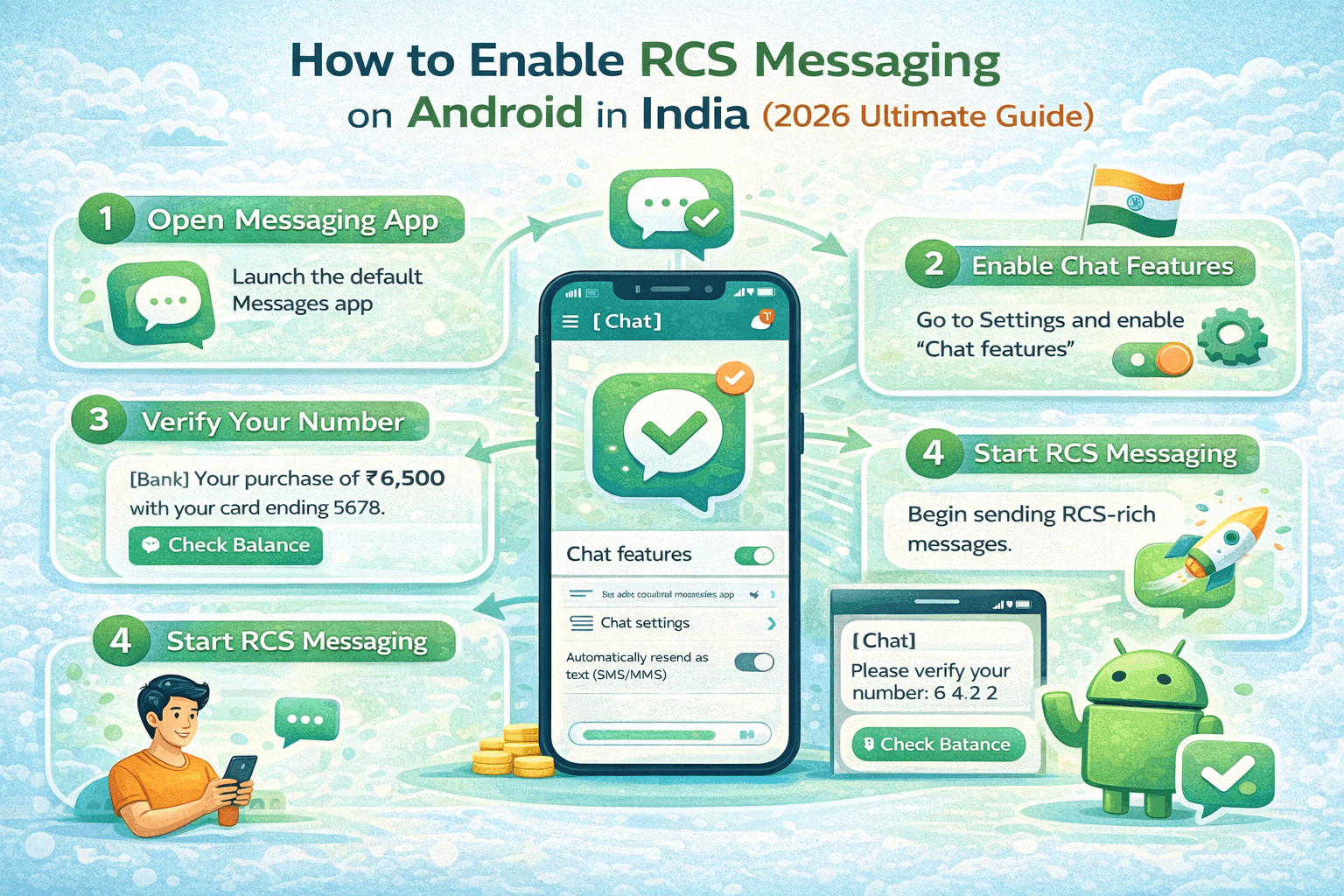
Follow these steps to enable RCS on any Android phone in India. The process takes under 2 minutes on most devices.
Method 1: Enable RCS via Google Messages App (All Android Phones)
This is the primary method and works on all Android phones regardless of brand. Google Messages is the official RCS messaging app for Android, developed by Google in partnership with global carriers.
|
📲 Step 1 |
Download or Update Google Messages Open the Google Play Store and search for 'Google Messages'.
If not installed, tap Install. If already installed, tap Update if an update
is available. Always use the latest version — RCS features improve with every
update. Play Store
link: search 'Google Messages' by Google LLC |
|
📱 Step 2 |
Set Google Messages as Your Default SMS App After installation, open Google Messages. A prompt will appear
asking 'Make Google Messages your default SMS app?' — tap Yes or Set as
Default. If no prompt appears: go to Settings → Apps → Default Apps → SMS App
→ select Google Messages. This step
is essential — RCS will not activate if Google Messages is not the default
app |
|
👤 Step 3 |
Open Settings via Profile Photo In Google Messages, tap your profile photo or initial in the
top-right corner of the screen. A dropdown menu will appear with your Google
account name and several options. If you see
a three-dot menu instead, tap it and look for 'Settings' |
|
⚙️ Step 4 |
Navigate to Messages Settings From the dropdown, tap 'Messages settings'. This opens the
full settings panel for Google Messages. On some
older versions of Google Messages, this may be labelled 'Settings' directly |
|
💬 Step 5 |
Tap 'RCS Chats' In Messages settings, look for the 'RCS chats' option
(sometimes listed as 'Chat features' on older app versions). Tap it to open
the RCS settings panel. If you
cannot find 'RCS chats', your Google Messages app needs an update |
|
🔄 Step 6 |
Toggle 'Turn on RCS chats' Toggle the 'Turn on RCS chats' switch to the ON position (it
turns blue/green when enabled). Google Messages will now attempt to verify
your phone number with your carrier and activate RCS. Verification
takes 30 seconds to 5 minutes — keep the app open during this process |
|
✅ Step 7 |
Verify RCS is Active Once verification completes, you will see 'Connected' or 'RCS
chats on' status. In any chat with an RCS-enabled contact, the message
compose bar will now show 'Chat message' instead of 'SMS message' —
confirming RCS is active. ✅ You will
now see read receipts, typing indicators, and HD media in supported chats |
While the core steps above work for all carriers, each Indian carrier has slight differences in how RCS activates. Here are carrier-specific tips:
Jio RCS Setup
Jio
has the largest RCS user base in India and offers the smoothest activation
experience. Jio's 4G/5G-only network means excellent RCS data reliability with
no 2G/3G fallback issues.
● Recommended:
Use a Jio SIM in the primary SIM slot
(SIM 1) for RCS — Jio prioritises RCS registration on the primary slot
● Data
requirement: Mobile data must be active
on your Jio SIM at the time of RCS activation — Wi-Fi alone may delay
registration
● Jio-specific
step: After enabling RCS in Google
Messages, open MyJio app and ensure your account is active and not restricted
● Verification
time: Typically 30-60 seconds on Jio —
fastest of all Indian carriers
● Dual-SIM
users: If using dual SIM, set Jio as the
preferred SIM for messages in Settings → SIM Cards → SMS/Messages
Airtel RCS Setup
Airtel
was one of the first Indian carriers to support RCS Business Messaging
commercially, and their consumer RCS implementation is equally robust. Airtel's
RCS reliability is consistently rated highest among Indian carriers.
● Recommended:
Ensure your Airtel account is active and
your number is not in any DND (Do Not Disturb) restricted category for digital
services
● Airtel
Thanks app: Open the Airtel Thanks app
and verify your account is active — expired or suspended Airtel accounts will
block RCS activation
● Verification
time: Typically 1-3 minutes on Airtel
● 5G users: Airtel 5G users in supported cities (Mumbai, Delhi,
Bangalore, Chennai, Hyderabad, Kolkata, Pune) see faster activation
● Dual-SIM: If Airtel is SIM 2, go to Settings → SIM Cards → set
Airtel as default for SMS before enabling RCS
Vi (Vodafone Idea) RCS Setup
Vi's
RCS implementation works well in urban areas but can be slower in semi-urban
locations due to ongoing network infrastructure upgrades. Vi users may need to
wait slightly longer for RCS activation.
● Network
requirement: Vi RCS requires 4G
connectivity — 3G or 2G areas will not support RCS. Check if your area has Vi
4G coverage before attempting activation
● Vi App
check: Open the Vi app, verify your
account is active, and ensure your plan includes data services
● Verification
time: 3-10 minutes on Vi — longer than
Jio or Airtel but still reliable
● Roaming: Vi RCS may be temporarily unavailable while on national
roaming — return to your home network circle for reliable activation
● Known
issue: Vi prepaid users with very low
balance may experience RCS activation delays — ensure you have active data pack
BSNL RCS Setup
BSNL's
RCS support launched in 2023 and is primarily available in areas with BSNL 4G
coverage. BSNL's 4G rollout accelerated in 2024-2025, expanding RCS
availability to more regions. BSNL 2G/3G areas do not support RCS.
● 4G
requirement: BSNL RCS only works on 4G —
verify your area has BSNL 4G by checking the BSNL coverage map on their website
● Verification
time: 5-15 minutes on BSNL — slowest
activation of the four carriers
● BSNL Self
Care: Ensure your account is active in
the BSNL Self Care portal and your data services are enabled
● Alternative:
If BSNL RCS is unavailable in your area,
connect to Wi-Fi for RCS messaging — RCS over Wi-Fi works regardless of
cellular carrier support
Samsung Galaxy (S, A, M, F Series)
Samsung
phones in India ship with Samsung Messages as the default SMS app, which has
its own limited RCS implementation. For full RCS capability — including
business messages with rich cards, all typing indicators, and end-to-end
encryption — install Google Messages and set it as default.
1. Open
Play Store → search 'Google Messages' → Install
2. Open
Google Messages → tap 'Set as default' when prompted
3. Profile
photo → Messages settings → RCS chats → Turn on RCS chats
4. For
Samsung One UI 6+: Settings → Apps → Google Messages → set as default SMS
5. Tip: On Samsung, you can keep Samsung Messages installed for Samsung-to-Samsung features while using Google Messages for RCS with all other contacts
OnePlus (OxygenOS / ColorOS)
OnePlus
phones sold in India use OxygenOS (older models) or ColorOS (newer models),
both of which ship with Google Messages as the default SMS app. OnePlus offers
the smoothest RCS setup experience of any major Indian Android brand.
1. Google
Messages is usually already the default — open it and check
2. Profile
photo → Messages settings → RCS chats → Turn on
3. OnePlus
12, 12R, Open, Nord series: RCS typically activates within 60 seconds
4. If using Jio on OnePlus: activation is almost instant due to Jio's optimised RCS infrastructure
Xiaomi / Redmi / POCO
Xiaomi's
MIUI and HyperOS ship with the Xiaomi/MIUI Messages app as default, which does
not support RCS. You must install Google Messages and set it as the default SMS
app.
1. Play
Store → Google Messages → Install
2. Open
Google Messages → grant all requested permissions (Contacts, SMS, Phone)
3. When
prompted, tap 'Set as default SMS app' → confirm in the Android settings popup
4. MIUI
Security app may ask for additional permissions — tap Allow for all RCS-related
permissions
5. Profile
photo → Messages settings → RCS chats → Turn on RCS chats
6. Xiaomi-specific:
if RCS stays pending, go to Settings → Apps → Special App Access → Default Apps
→ SMS app → select Google Messages and restart the phone
Realme
Realme
phones run Realme UI (based on ColorOS) and typically ship with Google Messages
as the default SMS app, making RCS setup straightforward.
1. Open
Google Messages (pre-installed) → confirm it is set as default
2. Profile
photo → Messages settings → RCS chats → toggle on
3. Realme
UI 4.0+: RCS activates typically within 1-2 minutes on Jio or Airtel
4. If using BSNL on Realme: connect to Wi-Fi first for faster activation
Vivo / iQOO
Vivo
phones ship with Vivo's own messaging app, which does not support RCS. Install
Google Messages and follow the standard steps.
1. Play
Store → Google Messages → Install → open and grant all permissions
2. Vivo's
OS may show 'Replace default app?' prompt — tap Replace
3. In
some Vivo models: Settings → More Settings → Default Apps → SMS App → Google
Messages
4. Profile
photo → Messages settings → RCS chats → Turn on
5. iQOO users: iQOO phones run Funtouch OS which is generally more cooperative — RCS activates quickly
Google Pixel
Google
Pixel phones have the best RCS support of any Android brand — Google Messages
is the pre-installed default, and RCS is often already enabled or activates
automatically on first use.
1. Open
Google Messages — it is pre-installed and set as default
2. RCS
may already be active — check by opening any chat and looking for 'Chat
message' in the compose bar
3. If not
active: Profile photo → Messages settings → RCS chats → Turn on
4. Pixel 9 series: RCS with end-to-end encryption is enabled by default — no manual steps required
After enabling RCS, confirm it is actually working with these verification steps:
Check 1: The Compose Bar Test
Open
Google Messages and start a new message to any contact who also has RCS
enabled. Look at the message compose bar at the bottom of the screen:
● Shows
'Chat message': RCS is active and the
recipient also has RCS — your conversation is RCS-enabled
● Shows 'SMS
message': Either RCS is not yet active
on your end, or the recipient does not have RCS — messages will send as SMS
● Shows 'MMS message': Group chat or media message will send as MMS — recipient may not have RCS
Check 2: The Settings Verification
Go
to: Google Messages → Profile photo → Messages settings → RCS chats. You should
see:
● Status:
Connected — RCS is fully active and
verified with your carrier
● Status:
Pending — Activation is in progress —
wait up to 24 hours or see Troubleshooting
● Status: Not available — Your carrier or device does not support RCS — check requirements above
Check 3: The Feature Test
Send
a test message to a friend or family member who also has RCS enabled. In an
active RCS chat, you should see:
● A
'Read' receipt below your sent message once they open it
● A
'...' typing bubble when they start typing a reply
● The
option to react to messages with emoji
● 'Share'
options including full-quality photo and video
If RCS is not activating or working correctly, try these solutions in order. Most RCS problems are resolved by one of the first four fixes.
Problem 1: RCS Shows 'Pending' for More Than 30 Minutes
This
is the most common RCS issue on Indian carriers. 'Pending' means your phone is
waiting for carrier confirmation.
1. Toggle
mobile data OFF and back ON — forces a fresh carrier registration attempt
2. Toggle
Airplane Mode ON for 30 seconds, then OFF — resets all radio connections
3. Switch
from Wi-Fi to mobile data — initial RCS registration works better over mobile
data on Indian networks
4. Restart
your phone — clears temporary network state that can block RCS registration
5. In
Google Messages: Profile photo → Messages settings → RCS chats → turn OFF →
wait 30 seconds → turn ON again
6. If
still pending after 24 hours, uninstall Google Messages updates (Play Store →
Google Messages → three dot → Uninstall updates → reinstall latest version)
Problem 2: 'RCS Chats' Option Not Visible in Settings
If
you cannot find the 'RCS chats' option in Google Messages settings:
1. Update
Google Messages to the latest version in Play Store — this is the most common
cause
2. Verify
Google Messages is the default SMS app (Settings → Apps → Default Apps → SMS
App)
3. Check
that your Google account is logged in: Profile photo → should show your Google
account email
4. Clear
Google Messages cache: Settings → Apps → Google Messages → Storage → Clear
Cache → restart app
5. On Samsung: ensure you are in Google Messages, not Samsung Messages — they look similar but are different apps
Problem 3: RCS Active But No Read Receipts or Typing Indicators
Read
receipts and typing indicators only work when BOTH you AND your contact have
RCS enabled. If you have RCS but your contact does not (or vice versa), the
conversation falls back to SMS.
1. Confirm:
does the chat show 'Chat message' or 'SMS message' in the compose bar? Only
'Chat message' = RCS active
2. Ask
your contact to check if they have RCS enabled in their Google Messages
settings
3. Read
receipts can be individually disabled — ask your contact if they have disabled
them in their settings
4. iPhone users: iPhones in India have limited RCS support in 2026 — chats with iPhone contacts will remain as SMS
Problem 4: RCS Not Working on Dual-SIM Phone
Dual-SIM
is very common in India and requires an extra configuration step for RCS.
1. RCS
can only be active on one SIM at a time — it activates on whichever SIM is set
as the default for SMS
2. Go to:
Settings → SIM Cards (or Dual SIM settings) → SMS/Messages → select the SIM you
want for RCS
3. After
changing the default SMS SIM, go back to Google Messages → RCS chats → turn off
→ turn on again
4. Jio SIM should be in SIM 1 slot for fastest RCS activation on dual-SIM phones
Problem 5: Photos and Videos Still Send in Low Quality
If
your photos are sending at low quality even with RCS enabled, check these
settings:
1. In the
conversation, confirm the compose bar shows 'Chat message' not 'SMS message' or
'MMS message'
2. Google
Messages settings → check that quality settings are not manually set to
'Compressed'
3. Large
videos (over 100 MB) may still be compressed — use Google Drive link sharing
for very large files
4. The recipient's device must also have RCS active — ask them to check their settings
Problem 6: RCS Working but Business Messages Without Rich Cards
Business
RCS messages (from banks, e-commerce, food delivery) show rich cards and
buttons only when the business has implemented RCS Business Messaging AND your
carrier has activated their sender ID.
1. Verify
your RCS is active in personal chats first — if personal RCS works, business
RCS should also work
2. Business
RCS availability depends on whether the specific brand has registered their RCS
Business Messaging sender — not all businesses have done so yet
3. If a
bank's RCS message shows as plain SMS: the bank may not yet have implemented
RCS, or your carrier has not enabled their sender
4. Check by looking for the blue verified sender badge — if present, the message is genuine RCS from a registered business
RCS Privacy and Security: What You Need to
Know
RCS in Google Messages comes with end-to-end encryption (E2E) for one-on-one chats when both parties use Google Messages. This is the same level of encryption as WhatsApp or Signal for personal conversations. Here is what you need to know:
End-to-End Encryption in RCS
● Personal
chats: E2E encrypted in Google Messages
when both users have RCS active and are using Google Messages
● Group
chats: E2E encryption for group chats
with E2E is rolling out — check for the lock icon in your group chat
● Business
messages: Business RCS messages (from
banks, brands) are encrypted in transit but are NOT E2E encrypted — the
business can see the message content. This is the same as email or web
communication
● The lock icon: In an encrypted chat, you will see a small lock icon on the send button — confirming E2E encryption is active
RCS vs WhatsApp Privacy
● Both use
E2E encryption for personal messages
● RCS is
tied to your phone number — no separate account or password required
● Google
Messages does not read your RCS message content for advertising (per Google's
privacy policy)
● Business
RCS messages are visible to the sending business — exactly like any business
email or SMS
● RCS metadata (who you messaged, when) may be visible to your carrier — same as regular SMS
Structured Data — HowTo Schema (paste in <head>)
<script type="application/ld+json"> { "@context": "https://schema.org", "@type": "HowTo", "name": "How to Enable RCS Messaging on Android in India", "step": [ {"@type":"HowToStep","name":"Install Google Messages","text":"Download Google Messages from Play Store and set it as your default SMS app."}, {"@type":"HowToStep","name":"Open Settings","text":"Tap your profile photo in Google Messages top right corner."}, {"@type":"HowToStep","name":"Enable RCS Chats","text":"Tap Messages settings → RCS chats → Turn on RCS chats."}, {"@type":"HowToStep","name":"Verify Activation","text":"Wait 30 seconds to 5 minutes. Status shows Connected when RCS is active."} ] } </script>
Category & Tags
● Category:
RCS Messaging / Android Guide / How-To
● Tags: #RCSMessaging #Android #GoogleMessages #RCSIndia #Jio #Airtel #Vi #BSNL #Samsung #OnePlus #Xiaomi #Realme #RCSenable #RCS2026 #AndroidIndia #MobileMessaging #ChatFeatures
Internal Linking Suggestions
● Link
to: 'Top RCS SMS Service Use Cases for Modern Businesses' (anchor: RCS business
messaging)
● Link
to: 'RCS Broadcast vs Automated Campaigns: Which Works Better?' (anchor: RCS
marketing campaigns)
● Link
to: 'B2B Lead Generation Strategy Using RCS Messaging' (anchor: RCS for
business)
● Link to: 'Top 10 Benefits of AI Chatbot for Your Website' (anchor: AI-powered messaging)
External Linking Suggestions (E-E-A-T)
● Google
Messages official support page (support.google.com/messages)
● GSMA
RCS specification page (gsma.com/rcs)
● TRAI India official portal (trai.gov.in) for DLT compliance reference
Frequently Asked Questions (FAQs)
|
Q1: Does RCS messaging cost
extra on Jio, Airtel, Vi, or BSNL in India? |
|
No — RCS
messaging does not cost anything extra beyond your existing data plan. RCS
messages use a tiny amount of mobile data (less than 1 KB per text message —
similar to WhatsApp). All four major Indian carriers (Jio, Airtel, Vi, BSNL)
include RCS messaging within their standard data plans at no additional
charge. The only cost is minimal data consumption, which is covered by any
active data pack. You will not see any separate RCS charges on your mobile
bill. |
|
Q2: Do I need to pay for
Google Messages to use RCS? |
|
No — Google
Messages is completely free. It is available on the Google Play Store at no
cost, and all RCS features including end-to-end encryption, read receipts,
typing indicators, and HD media sharing are included for free. There are no
premium tiers, no subscription fees, and no in-app purchases required for RCS
functionality. Google Messages is funded by Google's advertising and services
business, not user subscriptions. |
|
Q3: Will my contacts know
if I have enabled RCS? |
|
Your contacts
will not receive any notification that you have enabled RCS. The change is
seamless — when you enable RCS and send a message to another RCS user, the
chat automatically upgrades to RCS mode. They will simply notice that the
conversation now shows read receipts and typing indicators, but there is no
formal notification. Contacts without RCS will see no change — they will
continue receiving your messages as standard SMS. |
|
Q4: Can I use RCS messaging
on an iPhone in India? |
|
Apple added
RCS support in iOS 18, but full RCS Business Messaging features (rich cards,
interactive buttons, verified sender) on iPhones in India depend on Apple's
ongoing RCS implementation and carrier support. As of 2026, iPhones in India
have basic RCS support for person-to-person chats (read receipts, typing
indicators) but the full business RCS experience — branded cards, action
buttons — is primarily an Android and Google Messages feature. Approximately
65-70% of Indian smartphones are Android, making RCS primarily an
Android-focused channel in India. |
|
Q5: Is RCS messaging safe?
Can it be hacked or spoofed? |
|
RCS is
significantly more secure than SMS. End-to-end encryption in Google Messages
protects personal RCS chats from being intercepted. For business messages,
the verified sender badge (the blue checkmark with the company name and logo)
guarantees the message is from the registered business and cannot be spoofed
— this is a fundamental security improvement over SMS, where sender ID can
easily be faked (the most common technique in bank phishing via SMS). Always
look for the blue verified badge on any business RCS message asking you to
click links or share information. |
|
Q6: What happens to my
messages if I switch phones or factory reset? |
|
RCS message
history stored in Google Messages is backed up to your Google account by
default (if you have Messages backup enabled in Settings → Chats → Chat
backup). When you set up a new phone or restore after a factory reset, your
RCS message history restores automatically when you sign in to your Google
account and reinstall Google Messages. Your RCS activation also re-registers
automatically when you enable it on the new phone — you do not lose your
number or RCS status. |
|
Q7: Does RCS work during
international roaming in India? |
|
RCS messaging
generally works during international roaming when you have active mobile
data. Since RCS runs over the internet (not the cellular voice/SMS network),
it works anywhere you have a data connection — mobile data or Wi-Fi. However,
some carriers may temporarily disable RCS registration during international
roaming. If your RCS status shows 'Pending' while roaming, switch to Wi-Fi or
wait until you return to India and your home network. Receiving and sending
RCS messages while roaming may incur standard international data roaming
charges depending on your plan. |
|
Q8: Can I use RCS on
multiple phones with the same SIM? |
|
RCS is
registered to one phone number and one primary device at a time. If you use
the same SIM in a new phone, RCS automatically re-registers to the new device
within a few minutes of enabling it in Google Messages. You cannot have RCS
simultaneously active on two phones with the same SIM. Tablets that share a
number via SIM (not Wi-Fi calling) may have RCS available, but this depends
on the device and carrier configuration. Most users only use RCS on their
primary phone, which is the intended use case. |
|
Q9: Why is RCS showing 'Not
available' in my Google Messages settings? |
|
'Not
available' means your carrier has not enabled RCS for your specific account
or region. This is most common for BSNL users in 2G/3G areas, Vi users in
areas without 4G coverage, or users on very old prepaid plans that pre-date
carrier RCS support. Solutions: (1) If on BSNL or Vi, check if your area has
4G coverage; (2) Try enabling RCS over Wi-Fi by connecting to Wi-Fi and
attempting activation; (3) Ensure your carrier account is fully active with a
data plan; (4) Contact your carrier customer care and specifically ask them
to enable RCS messaging on your number. |
|
Q10: Should I use RCS or
WhatsApp for everyday messaging in India? |
|
Both serve
different purposes and most Indians use both. Use RCS (Google Messages) for:
receiving business messages from banks, e-commerce, food delivery, and other
brands — these only come through your SMS/RCS app; messaging contacts who
don't use WhatsApp (older relatives, international contacts); having a backup
messaging channel when WhatsApp is down. Use WhatsApp for: group chats with
most Indian friend and family groups where everyone is already on WhatsApp;
voice and video calls; status updates and Stories. RCS and WhatsApp are
complementary, not competing — enabling RCS costs nothing and adds capability
without reducing WhatsApp functionality. |
Conclusion: Enable RCS Today — It Takes
Under 2 Minutes
RCS
messaging is available right now on your Android phone in India — for free, in
under 2 minutes, without downloading any extra app or creating any new account.
The upgrade from SMS to RCS brings read receipts, typing indicators, HD photo
and video sharing, voice messages, message reactions, and end-to-end encryption
— features that make SMS feel like a 2005 technology in comparison.
For most Android users in India on Jio, Airtel, Vi, or BSNL, the process is the same:
1. Open
Google Messages (install from Play Store if needed)
2. Set it
as your default SMS app
3. Profile
photo → Messages settings → RCS chats → Turn on
4. Wait
30 seconds to 5 minutes for activation
5. Enjoy the upgrade
Beyond
personal messaging, enabling RCS also unlocks the full business RCS experience
— rich, branded messages from banks, e-commerce platforms, airlines, healthcare
providers, and every other business that sends you updates. Instead of plain
'Your OTP is 123456' SMS, you get interactive, visually rich messages with
verification badges that confirm you are talking to the real business — not a
phishing attempt.