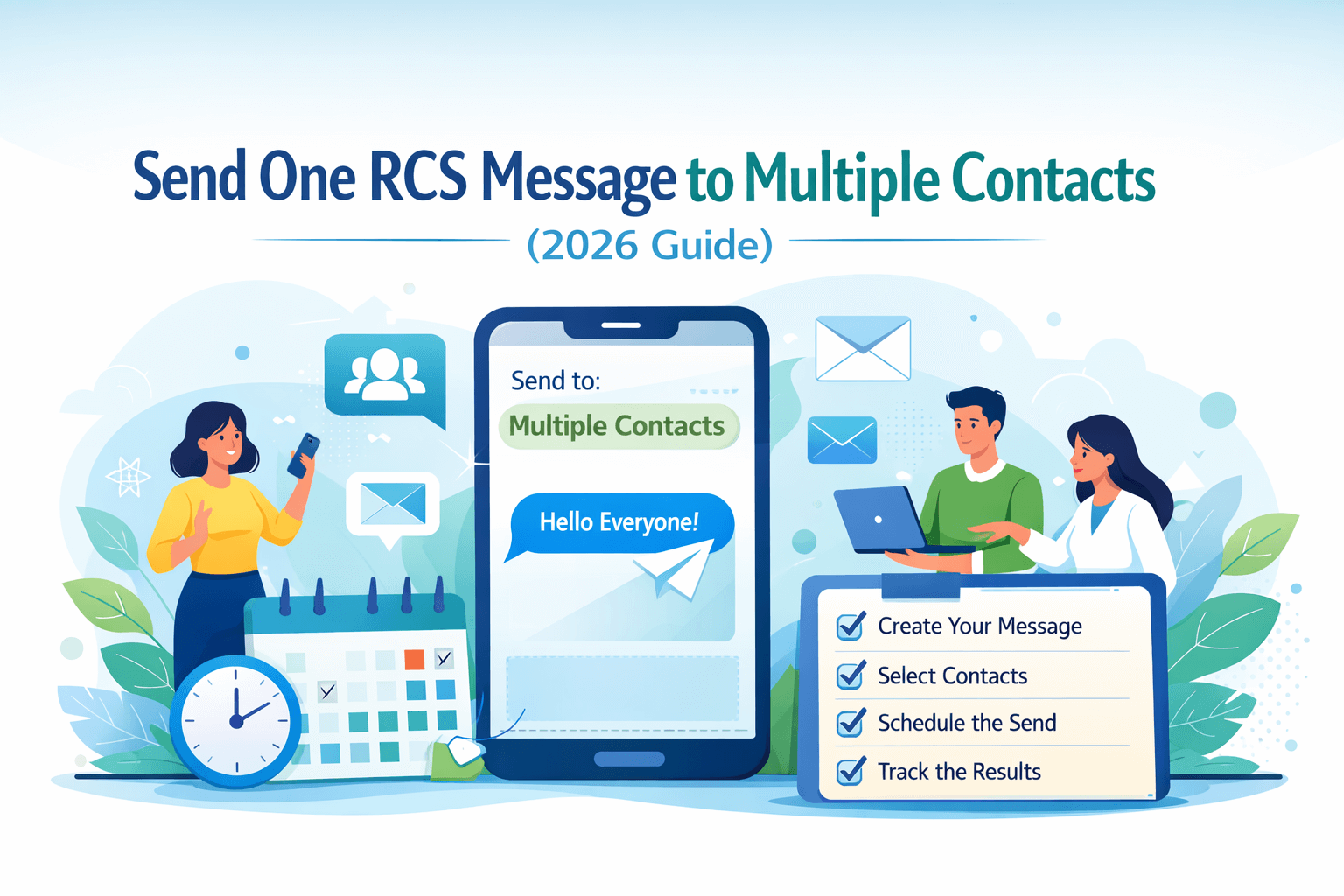
Send One RCS Message to Multiple Contacts (2026 Guide)
Learn how to send one RCS message to multiple contacts at once — using Google Messages, Samsung Messages, iPhone iOS 18, and third-party apps. Complete 2026 step-by-step guide for Android and iPhone users.
Send One RCS Message to Multiple Contacts (2026 Guide)
Imagine
this: you need to send the same important message — a birthday wish, a business
update, a promotional offer, or a team announcement — to 20, 50, or even 200
people. Typing and sending it one by one would take forever and you'd almost
certainly miss someone.
That's
exactly the problem RCS messaging solves in 2026. Rich Communication Services
(RCS) now supports powerful multi-contact messaging features across all major
platforms — Google Messages, Samsung Messages, iPhone iOS 18, and a range of
third-party apps — making it easier than ever to reach multiple people with a
single message.
In this complete guide, we'll walk you through every method available to send one RCS message to multiple contacts, when to use each, and pro tips to make your messaging more effective. Whether you're a casual user, a small business owner, or a marketer — this guide has you covered.
What Is RCS Messaging and Why Use It for
Multiple Contacts?
RCS
(Rich Communication Services) is the modern upgrade to SMS. While SMS is
limited to 160 characters, no read receipts, and poor media support, RCS
delivers a feature-rich experience closer to WhatsApp or iMessage — but built
directly into your phone's native messaging app.
When it comes to sending messages to multiple contacts, RCS has a significant advantage over SMS: it supports proper group chats with read receipts, typing indicators, and high-quality media — all without needing a separate app.
RCS vs SMS: Multi-Contact Messaging Comparison
|
Feature |
SMS |
RCS |
|
Send to
Multiple Contacts |
✅ Yes (basic) |
✅ Yes (advanced) |
|
Group Chat
Support |
Basic only |
✅ Full group RCS |
|
Read Receipts
in Group |
❌ No |
✅ Yes |
|
Typing
Indicators |
❌ No |
✅ Yes |
|
High-Quality
Images |
❌ Compressed |
✅ Full HD |
|
Message
Character Limit |
160 characters |
Unlimited |
|
Broadcast (No
Group) |
❌ No |
✅ Via apps |
|
Internet
Required |
No |
Yes |
|
Cost |
Carrier charges |
Free (data only) |
4 Ways to Send One RCS Message to Multiple
Contacts
There are four main methods, each suited to different situations and contact list sizes. Here's a quick overview before we dive into each one in detail:
|
# |
Method |
Best For |
Contact
Limit |
|
1 |
Google
Messages Group Chat |
Friends,
family, small teams |
Up to 100
people |
|
2 |
Samsung
Messages Multi-Send |
Samsung
Galaxy users, quick sends |
Up to 100
people |
|
3 |
iPhone iOS 18
Group RCS |
iPhone users,
mixed Android/iPhone |
Up to 32
people |
|
4 |
Third-Party
Broadcast Apps |
Business,
marketing, large lists |
Unlimited |
Method 1: Google Messages — RCS Group Chat
(Android)
Google Messages is the most popular RCS app on Android and the easiest way to send one message to multiple contacts. You can either create a proper group chat (where everyone can see and reply to each other) or send individual messages to multiple recipients.
Option A: Create an RCS Group Chat
This method creates a shared conversation where all recipients can see each other and reply to the group — great for team chats, family groups, or friend circles.
|
1 |
Open Google Messages Launch Google
Messages on your Android device. Make sure you have the latest version
installed from the Google Play Store. |
|
2 |
Tap the Compose Button Tap the
pencil/compose icon in the bottom-right corner of the screen to start a new
conversation. |
|
3 |
Add Multiple Contacts In the 'To'
field at the top, start typing a contact name and select them. Then keep
typing and adding more contacts one by one. You can add up to 100 people. |
|
4 |
Type Your Message Once all
contacts are added, tap the message input box at the bottom and type your
message. Add emoji, photos, or files if needed. |
|
5 |
Tap Send Hit the Send
(➤) button. Google Messages will automatically create an RCS group chat and
deliver your message to all selected contacts simultaneously. |
Option B: Send Individual Messages to Multiple Contacts
If
you don't want recipients to see each other or reply as a group, use this
method. Each person receives the message as a private one-on-one conversation.
1. Compose
your message in Google Messages as usual.
2. In the
'To' field, add all the contacts you want to message.
3. Before
sending, look for the option to toggle between 'Group message' and 'Individual
messages.' Select 'Individual messages.'
4. Tap Send — each contact receives a private copy of your message.
Method 2: Samsung Messages — Multi-Contact
Send (Samsung Galaxy)
Samsung Galaxy phone users have a built-in multi-contact messaging feature in Samsung Messages. It works slightly differently from Google Messages but is just as powerful for sending one RCS message to multiple people.
Step-by-Step: Samsung Messages Multi-Send
|
1 |
Open Samsung Messages Find and open
Samsung Messages on your Galaxy device. This app comes pre-installed on all
Samsung Galaxy phones running One UI 5 or later. |
|
2 |
Tap the Compose Icon Tap the
pencil (compose) icon in the top-right corner of the main screen to start a
new message. |
|
3 |
Enter Multiple Recipients In the
recipient field, type each contact name or number and select them. Samsung
Messages lets you add contacts one at a time until your list is complete. |
|
4 |
Choose Group or Individual Send Samsung
Messages will ask whether you want to send as a Group message (everyone in
one thread) or Individual messages (separate private conversations for each
person). Choose based on your need. |
|
5 |
Type and Send Your Message Write your
message in the input box, add any attachments if needed, and tap the Send
button. Your message goes out to all selected contacts instantly. |
Samsung-Specific Features Worth Knowing
● Samsung
Messages supports sending to contacts directly from your Samsung Contacts app —
tap Share → Samsung Messages to pre-fill multiple recipients.
● On One
UI 6 and later, Samsung Messages has an improved multi-select interface in the
contact picker — tap multiple names without typing each one.
● If RCS is not enabled for a contact, Samsung Messages automatically falls back to MMS for group messages — no action needed from you.
Method 3: iPhone iOS 18 — RCS Group Messages
With iOS 18, Apple introduced full RCS support — which means iPhone users can now participate in RCS group chats with Android users like never before. Before iOS 18, iPhone group messages with Android phones fell back to MMS. Now they work as proper RCS group conversations.
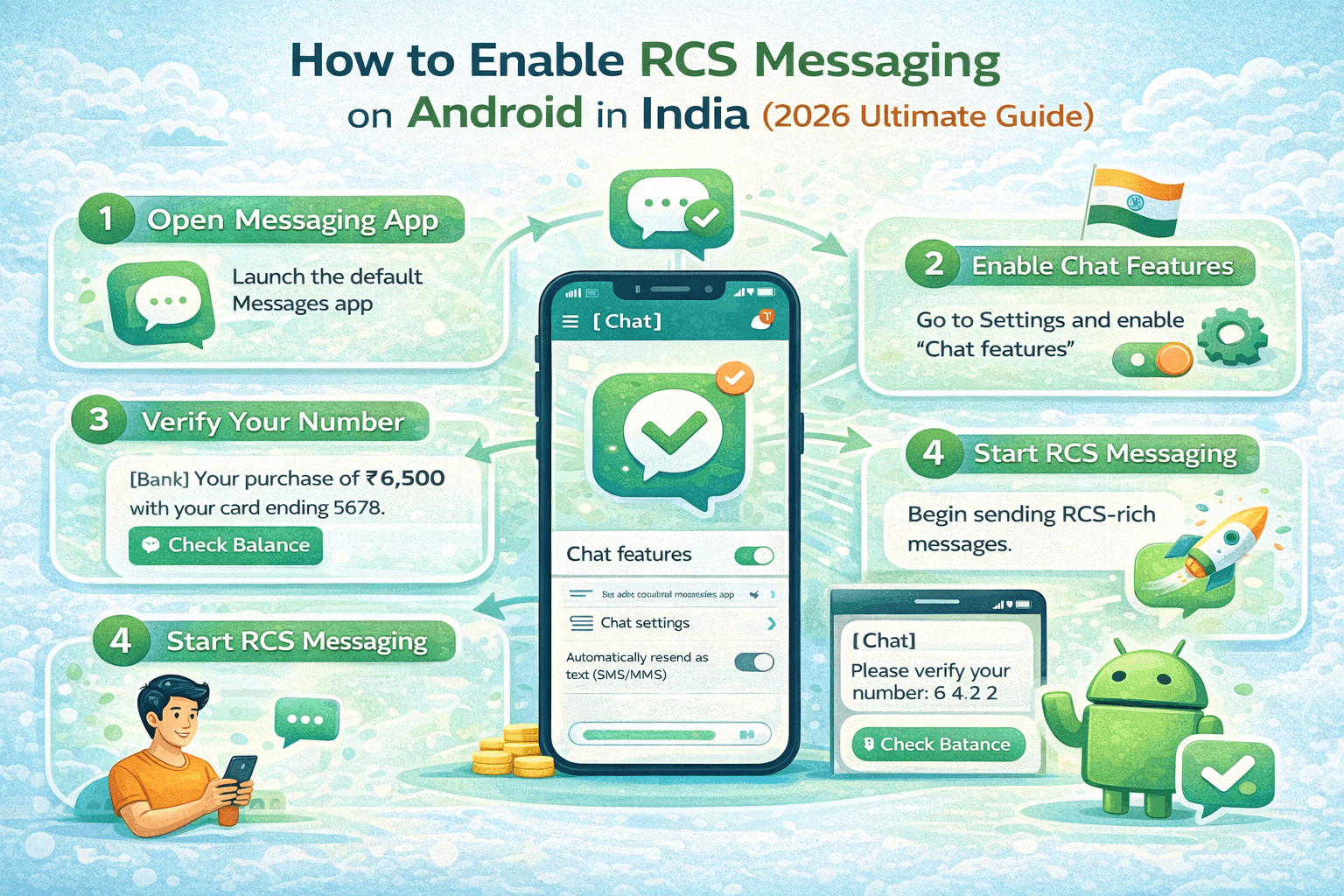
First: Enable RCS on iPhone (One-Time Setup)
1. Open
Settings on your iPhone.
2. Scroll
down and tap Apps, then tap Messages.
3. Find
'RCS Messaging' and toggle it ON.
4. Wait for activation — your phone will confirm when RCS is ready.
Step-by-Step: Send RCS Message to Multiple Contacts on iPhone
|
1 |
Open the Messages App Launch the
built-in Messages app on your iPhone running iOS 18 or later. |
|
2 |
Tap the Compose Button Tap the
pencil/compose icon in the top-right corner to start a new message. |
|
3 |
Add Multiple Recipients In the 'To'
field, type each contact's name and select them. Keep adding contacts until
your list is complete. iPhone supports up to 32 people in an RCS group. |
|
4 |
Type Your Message Tap the
message field and compose your message. You can add photos, videos, emoji
reactions, and more — all supported in RCS group chats. |
|
5 |
Send the Message Tap the blue
Send (↑) button. Your message is delivered as an RCS group chat if all
recipients support RCS, or falls back to MMS for those who don't. |
iPhone RCS Group Chat Limitations in 2026
● iPhone
RCS group chats support up to 32 participants — for larger groups, a
third-party app is needed.
● iMessage
group chats (blue bubble) and RCS group chats (green bubble) are separate — you
cannot mix them.
● If a
recipient doesn't support RCS, their messages fall back to SMS/MMS — they can
still participate but without advanced features.
● End-to-end encryption in RCS group chats on iPhone depends on carrier and both parties using supported apps.
Method 4: Third-Party Apps — Bulk RCS
Messaging (Best for Business)
For
sending one RCS message to large numbers of contacts — hundreds or thousands —
built-in messaging apps aren't designed for that scale. Third-party broadcast
and bulk messaging apps fill this gap perfectly, especially for businesses and
marketers.
The key difference between a group chat and a broadcast: in a group chat, everyone sees each other's replies. In a broadcast, each recipient gets a private individual message — they don't know others received the same message.
1. SKEDit — Best for Broadcast & Scheduling
SKEDit
is one of the most capable messaging apps available in 2026. It supports
broadcast messaging to multiple contacts, scheduled sends, recurring messages,
and works with RCS, WhatsApp, Telegram, and more — all from one interface.
● Available
on Android and iOS
● Send
broadcast messages where each recipient gets a private copy
● Schedule
messages to multiple contacts at once
● Free
plan with limited broadcasts — premium unlocks unlimited
● Supports 10+ messaging platforms including RCS and WhatsApp
2. Pulse SMS — Best for Android Power Users
Pulse
SMS is a fully-featured Android messaging replacement that excels at managing
large contact lists. It lets you send to multiple contacts, sync messages
across all your devices (phone, tablet, web browser, PC), and offers powerful
group management tools.
● Android
only — excellent for heavy messaging users
● Web
and desktop app included for PC access
● Multi-contact
send with individual message delivery option
● Subscription-based
— affordable monthly plan
● Dark mode, themes, and advanced customization
3. Textra SMS — Lightweight Multi-Contact Messaging
Textra
is a popular lightweight SMS and RCS replacement app for Android. It's fast,
clean, and supports sending messages to multiple contacts without the
complexity of enterprise tools — perfect for personal users who need slightly
more than what Google Messages offers.
● Android
only — very fast and lightweight
● Simple
multi-contact compose interface
● Free
with optional paid theme packs
● No subscription required for core features
4. RCS Business Messaging Platforms (For Enterprises)
Large
businesses needing to send RCS messages to thousands of customers should look
at dedicated RCS Business Messaging (RBM) platforms. These are enterprise tools
that integrate with your CRM and contact databases:
● Google's
RCS Business Messaging API — official Google platform for verified business
senders
● Twilio
— popular developer API supporting RCS with fallback to SMS
● Sinch
— enterprise messaging platform with full RCS support
● MessageBird — multi-channel messaging including RCS broadcast
Side-by-Side Comparison: All 4 Methods
Use this table to quickly pick the right method based on your situation:
|
Feature |
Google Msg |
Samsung Msg |
iPhone iOS 18 |
3rd Party App |
|
Max Contacts |
100 |
100 |
32 |
Unlimited |
|
Group Chat |
✅ Yes |
✅ Yes |
✅ Yes |
✅ Yes |
|
Individual
Broadcast |
Limited |
✅ Yes |
Limited |
✅ Yes |
|
Read Receipts |
✅ Yes |
✅ Yes |
✅ Yes |
✅ Yes |
|
Schedule Send |
✅ Yes |
✅ Yes |
✅ Yes |
✅ Yes |
|
Recurring
Messages |
❌ No |
❌ No |
❌ No |
✅ Yes |
|
Works on
iPhone |
❌ No |
❌ No |
✅ Yes |
✅ Some |
|
Cost |
Free |
Free |
Free |
Free/Paid |
|
Best For |
Android |
Samsung |
iPhone |
Business |
Which Method Should You Use?
● Personal
use (friends & family): Google
Messages or Samsung Messages group chat — free, easy, no setup required.
● iPhone
users: Use iPhone's built-in Messages
app with iOS 18 RCS enabled.
● Small
business (up to 100 contacts): Google
Messages individual messages or SKEDit broadcast.
● Large business (100+ contacts): RCS Business Messaging platform like Twilio, Sinch, or Google RBM API.
Group Chat vs Broadcast Message: What's the
Difference?
This
is one of the most common points of confusion for users new to multi-contact
RCS messaging. Understanding the difference helps you choose the right
approach.
|
|
Group Chat |
Broadcast Message |
|
Recipients
see each other |
✅ Yes — shared thread |
❌ No — private delivery |
|
Recipients
can reply to all |
✅ Yes |
❌ No — replies only to sender |
|
Privacy |
Lower — names visible |
Higher — fully private |
|
Best for |
Teams, families, groups |
Announcements, promos, alerts |
|
Supported in
native apps |
✅ Yes |
Limited / Third-party needed |
Pro Tips for Sending RCS to Multiple
Contacts Effectively
Tip 1: Personalize Even Bulk Messages
When sending to multiple contacts individually (not as a group), add the recipient's name at the start of the message. Even a simple 'Hi [Name],' makes the message feel personal rather than mass-sent — improving response rates significantly.
Tip 2: Create Contact Groups in Advance
On Android, you can create contact groups in the Contacts app (e.g., 'Family,' 'Work Team,' 'VIP Customers'). When composing in Google Messages, type the group name and all contacts in that group auto-populate — saving you from adding them one by one every time.
Tip 3: Use Labels in Google Contacts
Google Contacts supports labels (tags) for organizing contacts into custom categories. Create a label like 'Blog Subscribers' or 'Newsletter Readers,' assign contacts to it, and then in Google Messages, type the label name to quickly select the entire group.
Tip 4: Test With a Small Group First
Before sending to your full list, always send a test message to 2-3 people (or yourself using a second number). Verify the message renders correctly, links work, images display properly, and the content is accurate. A mistake sent to 200 people is hard to undo.
Tip 5: Respect Timing and Time Zones
When sending to multiple contacts across different time zones, use the scheduling feature (long-press Send → Schedule send in Google Messages) to ensure your message arrives at an appropriate hour for each group. Sending a 3 AM message — even accidentally — creates a poor impression.
Tip 6: Keep Group Chats Focused
Large group chats can quickly become noisy and overwhelming. Best practice: keep group chats under 20 people for active conversations. For announcements to larger lists, use broadcast messaging where only you can send — keeping the channel clean and professional.
Tip 7: Use Rich Media Strategically
One of RCS's biggest advantages over SMS is rich media support — you can send high-resolution images, videos, PDFs, and interactive buttons. Take advantage of this: instead of a plain text announcement, send a well-designed image or short video that grabs attention immediately.
Troubleshooting: Common Issues with
Multi-Contact RCS
Problem 1: Message Sent as MMS Instead of RCS
If
your multi-contact message is delivering as MMS (lower quality, no read
receipts), here's why and how to fix it:
● One or
more recipients don't have RCS enabled — Google Messages automatically falls
back to MMS for those contacts.
● Check:
Open the conversation → tap the contact name → look for 'RCS chat' indicator.
If missing, that contact isn't RCS-enabled.
● Solution: Ask the recipient to enable RCS in their messaging app settings, or use a third-party app that handles the fallback more gracefully.
Problem 2: Some Contacts Not Receiving the Message
If
certain people in your group aren't getting the message:
● Verify
the contact numbers are saved correctly in your phone.
● Ask
the missing recipient to check if their messaging app has notifications
enabled.
● If
using RCS Business Messaging, check your delivery reports for failed sends.
● The recipient's phone may be off or have no internet — the message will deliver when they reconnect.
Problem 3: Can't Add More Than a Certain Number of Contacts
Native
messaging apps have participant limits (100 for Google Messages, 32 for
iPhone). If you need more:
● Use a
third-party app like SKEDit or Pulse SMS for larger lists.
● For
business use, upgrade to a dedicated RCS Business Messaging platform.
● Consider splitting your list into multiple smaller groups if third-party apps aren't an option.
Problem 4: Group Chat Is Too Noisy / Unmanageable
When
large group chats get overwhelming:
● Mute
the group: long-press the conversation → tap Mute.
● In
Google Messages, you can mute for 1 hour, 8 hours, or always.
● Consider switching to a broadcast approach for one-way announcements instead.
Problem 5: RCS Group Chat Not Working Between Android and iPhone
Cross-platform
RCS group chats between Android and iPhone require both parties to have RCS
enabled. If it's not working:
● iPhone
users must be on iOS 18+ with RCS toggled on in Settings → Apps → Messages.
● Android
users must have RCS enabled in Google Messages or Samsung Messages.
● Both
devices must be connected to the internet.
● If cross-platform RCS still fails, the message will fall back to MMS — this is normal behavior.
Real-World Use Cases: When to Send RCS to
Multiple Contacts
1. Family Coordination
Whether it's a holiday dinner plan, a family emergency update, or sharing photos from a reunion — an RCS family group chat keeps everyone informed in real time. Read receipts let you know who has seen the message, and the unlimited text and HD media make sharing easy.
2. Small Business Customer Updates
A local restaurant announcing today's specials, a salon notifying clients of appointment availability, or a boutique promoting a flash sale — all of these are perfect use cases for RCS broadcast to a curated customer list. Professional, instant, and free.
3. Event Planning and Invitations
Sending event invitations, RSVP reminders, and day-of logistics to all attendees is seamless via RCS group messaging. You can share location pins, images of the venue, and schedule reminder messages — all within one conversation thread.
4. Team and Workplace Communication
For small teams without a dedicated Slack or Teams setup, an RCS group chat is a lightweight, cost-free alternative. Send daily standups, quick announcements, meeting reminders, and file attachments — all without requiring anyone to install a new app.
5. Educational Groups and Study Circles
Teachers, tutors, and study group leaders can use RCS group messaging to share assignment reminders, study materials, exam schedules, and quick check-in messages — reaching all students in one send.
6. Emergency and Community Alerts
Neighborhood watch groups, apartment building managers, and community leaders can use RCS broadcast messages to send urgent alerts, weather warnings, or important notices to all residents privately and instantly.
Frequently Asked Questions (FAQs)
Here are the most common questions people ask about sending one RCS message to multiple contacts — answered clearly.
|
Q1: Can I send one RCS
message to multiple contacts for free? |
|
Yes,
completely free. Google Messages, Samsung Messages, and iPhone's Messages app
all support multi-contact RCS messaging at no charge. You only need a Wi-Fi
or mobile data connection, which you likely already have. Third-party apps
like SKEDit have free tiers as well. |
|
Q2: What is the maximum
number of contacts I can message at once with RCS? |
|
It depends on
the app: Google Messages supports up to 100 people in a group chat, Samsung
Messages also supports up to 100, and iPhone (iOS 18) supports up to 32 in an
RCS group. For larger lists, third-party apps or RCS Business Messaging
platforms have no practical limit. |
|
Q3: Will recipients know I
sent the same message to multiple people? |
|
In a group
chat, yes — everyone can see who else is in the group. In an
individual/broadcast send, no — each person receives a private message with
no indication others got the same message. For privacy-sensitive sends,
always use individual or broadcast mode. |
|
Q4: Can I send RCS to
multiple contacts if some don't have RCS enabled? |
|
Yes.
Messaging apps like Google Messages automatically fall back to MMS for
contacts without RCS enabled. The message still delivers — just without RCS
features like read receipts and typing indicators for those specific
contacts. |
|
Q5: Can Android and iPhone
users be in the same RCS group chat? |
|
Yes, as of
2026! With iOS 18 RCS support, Android and iPhone users can participate in
the same RCS group chat. Both parties need RCS enabled on their devices. If a
participant doesn't support RCS, their messages fall back to SMS/MMS. |
|
Q6: Can I attach images or
files when sending to multiple contacts? |
|
Yes. RCS
supports sending high-quality images, videos, audio files, PDFs, and more to
group chats and individual sends. The file quality is significantly better
than MMS — no compression, no size restrictions in most cases. |
|
Q7: Is there a way to send
to multiple contacts without creating a group chat? |
|
Yes — use the
'Individual messages' option in Google Messages when adding multiple
contacts. Each person gets a private one-on-one copy of your message. For
larger lists, apps like SKEDit and Pulse SMS specialize in this broadcast
delivery model. |
|
Q8: Can I schedule a
message to multiple contacts? |
|
Yes. In
Google Messages, add multiple contacts, type your message, then long-press
the Send button and select 'Schedule send.' The message will be delivered to
all contacts at your chosen date and time automatically. |
|
Q9: What happens if a
recipient's phone is off when I send a group RCS? |
|
The message
is queued by the RCS system and delivered automatically when their phone
comes back online and connects to the internet. You'll see their read receipt
update once they've seen it. |
|
Q10: Can I remove someone
from an RCS group chat after creating it? |
|
In Google
Messages, you can remove participants from an RCS group chat. Open the group
→ tap the group name at the top → tap the contact → select 'Remove from
conversation.' Note that the removed contact can still see all previous
messages. |
Conclusion: The Right Method for the Right
Situation
Sending
one RCS message to multiple contacts is easier in 2026 than it has ever been.
Whether you're organizing a family group, coordinating a work team, running a
small business, or managing large-scale customer communications — there's a
perfect method available for free or at very low cost.
Here's a quick recap to help you choose:
● Google
Messages (Android): Best overall —
supports up to 100 contacts, free, built-in, with group chat and individual
send options.
● Samsung
Messages: Best for Galaxy users — native
app with easy multi-contact interface.
● iPhone iOS
18: Best for Apple users — native RCS
group chat with up to 32 people, cross-platform with Android.
● Third-Party Apps: Best for business and large lists — SKEDit, Pulse SMS, and RBM platforms handle unlimited contacts with broadcast delivery.
The
best part: all native methods are completely free. No hidden fees, no
subscriptions — just open your messaging app and start connecting with the
people who matter.
We hope this guide helped you master multi-contact RCS messaging. If you found it useful, share it with someone who could use it. Have a question we didn't cover? Drop it in the comments below — we answer every one.