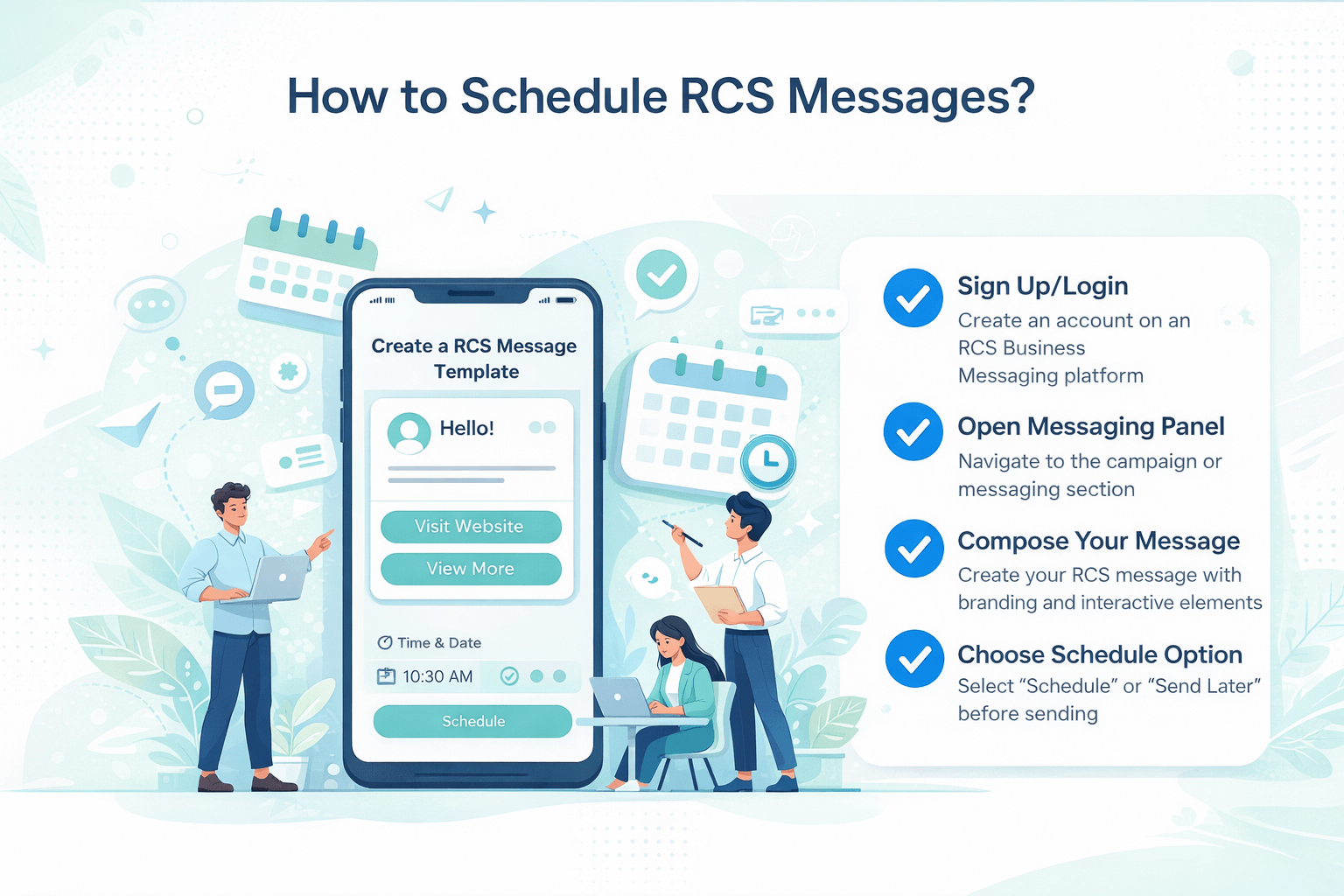
How to Schedule RCS Messages
Learn how to schedule RCS messages on any device — Android (Google Messages), Samsung Messages, and iPhone (iOS 18). This step-by-step guide covers all methods, troubleshooting tips, and top third-party apps to help you send messages at the perfect time — automatically and for free.
How to Schedule Messages on RCS?
Have you ever typed out a heartfelt birthday message the night before, only to forget to send it at the right moment? Or needed to send a work update at 9 AM sharp but weren't sure you'd be awake? If so, you're not alone — and that's exactly where RCS message scheduling saves the day.
RCS,
or Rich Communication Services, is the next evolution of text messaging. Unlike
old-school SMS, RCS supports high-quality media, read receipts, typing
indicators, group chats, and — most powerfully — the ability to schedule
messages to send at a future date and time automatically.
In this complete, step-by-step guide, we'll walk you through how to schedule messages on RCS across all major platforms: Google Messages on Android, Samsung Messages, and iPhone with iOS 18. Whether you're a casual user or a power user who wants to master their messaging workflow, this guide covers everything you need.
Before
diving into scheduling, it's worth understanding what RCS actually is — because
it's fundamentally different from the SMS texts most people have used for
decades.
RCS
stands for Rich Communication Services, a messaging protocol designed to
replace SMS and MMS. It was developed by the GSM Association (GSMA) and is now
supported by Google, Samsung, Apple, and most major carriers worldwide.
RCS vs SMS: Key Differences
|
Feature |
SMS |
RCS |
|
Message
Length |
160 characters |
Unlimited |
|
Image Quality |
Low (MMS compressed) |
Full HD |
|
Read Receipts |
❌ Not supported |
✅ Supported |
|
Typing
Indicators |
❌ Not supported |
✅ Supported |
|
Group Chats |
Basic only |
✅ Advanced |
|
Message
Scheduling |
❌ Not supported |
✅ Supported |
|
File Sharing |
❌ Very limited |
✅ Up to 100MB+ |
|
Internet
Required |
No (uses cell signal) |
Yes |
|
End-to-End
Encrypt |
❌ No |
✅ (Google Messages) |
Who Should Use RCS Message Scheduling?
RCS
scheduling is useful for a wide range of people and situations:
● Business
professionals who need to send updates, follow-ups, or meeting reminders at
specific times
● Students
coordinating group project messages across different time zones
● Individuals
who want to send birthday, anniversary, or holiday greetings right at midnight
● People
working across time zones who don't want to disturb recipients at odd hours
● Social
media managers or marketers who manage communication timing carefully
● Anyone who writes messages late at night but wants them delivered at a more appropriate hour
Before
you can schedule an RCS message, make sure you have the following set up
correctly on your device. Missing any of these can prevent the scheduling
feature from appearing or working.
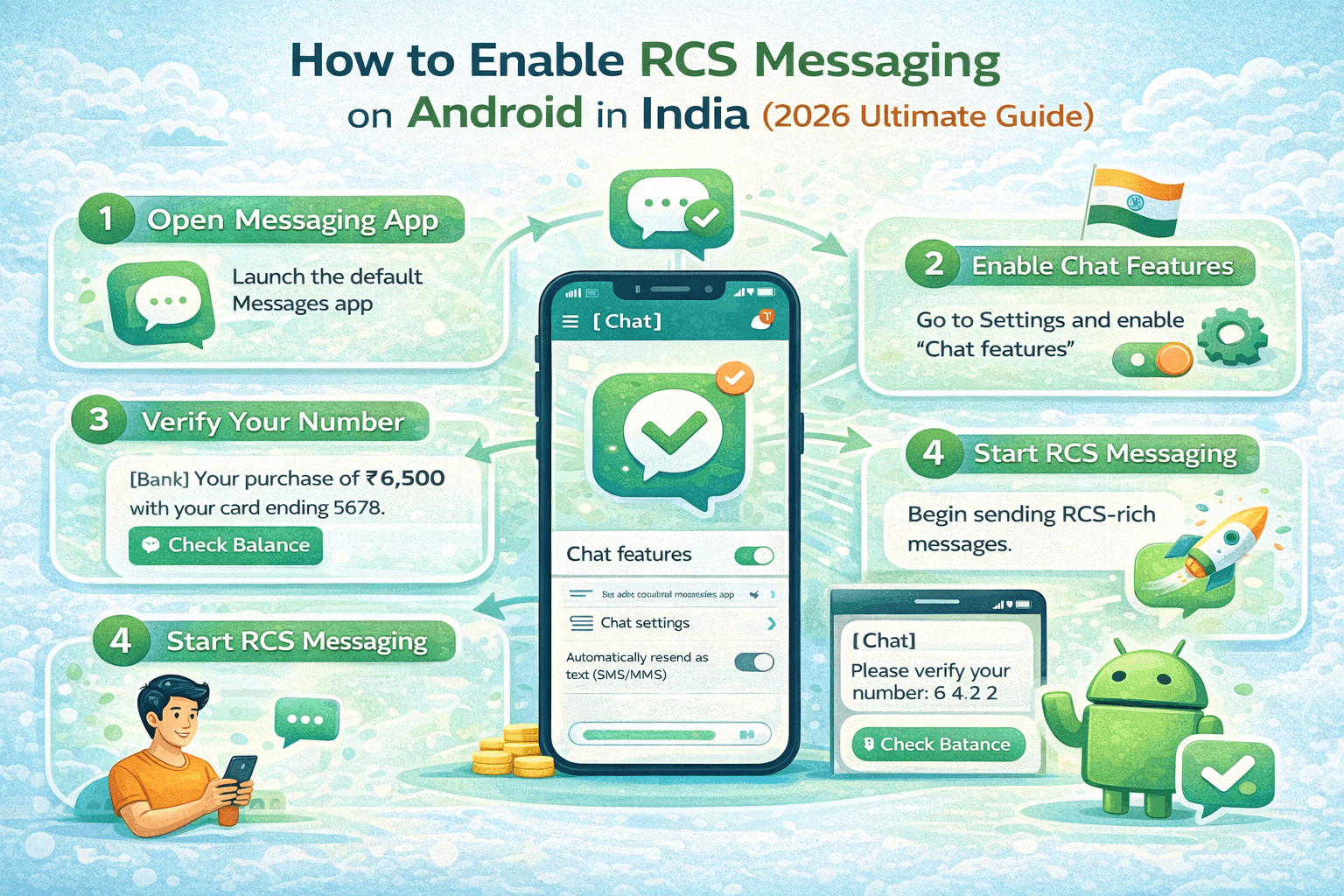
1. RCS Must Be Enabled
RCS
scheduling only works within RCS chats. If RCS is not enabled on your device or
not activated with your carrier, the schedule option may not appear. Here's how
to verify:
2. Both Parties Need RCS Support
RCS messaging works best when both the sender and the recipient have RCS-enabled devices and carriers. If the recipient doesn't support RCS, your message may fall back to SMS — and the scheduling feature may be limited or unavailable depending on your app.
3. Internet Connection Is Required
Unlike
SMS which travels over your carrier's cell network, RCS messages travel over
the internet. For a scheduled message to send at its designated time, your
phone must be:
● Powered
on and not in airplane mode
● Connected
to Wi-Fi or mobile data
● Not in an aggressive battery-saving mode that kills background processes
4. App Must Be Up to Date
Scheduling features are added in app updates. Make sure your messaging app is the latest version. You can check for updates in the Google Play Store (Android) or App Store (iPhone).
Google
Messages is the most popular RCS messaging app on Android and has the most
polished, easiest-to-use scheduling feature. It's built right into the app — no
extra settings required.
Step-by-Step Instructions
|
1 |
Open Google Messages Launch the
Google Messages app on your Android phone. If you don't have it, download it
free from the Google Play Store. It's available on all Android devices. |
|
2 |
Open or Start a Conversation Tap on an
existing conversation to open it, or tap the compose button (pencil icon) in
the bottom-right corner to start a new message. Search for or select the
contact you want to message. |
|
3 |
Type Your Full Message In the
message input field at the bottom, type out your complete message — exactly
as you want it to appear when it's delivered. You can include text, emoji,
and even attachments. |
|
4 |
Long-Press the Send Button This is the
key step. Instead of tapping the Send button (the blue arrow ➤), press and
hold it for about 1 second. A popup menu will appear above the button. |
|
5 |
Select 'Schedule Send' In the popup
menu, you'll see the option 'Schedule send' with a clock icon. Tap it. If you
don't see this option, make sure your app is updated and RCS is enabled. |
|
6 |
Choose a Date and Time Google
Messages will show you a few suggested times (like 'Tomorrow morning at 8:00
AM'). You can select one of these shortcuts, or tap 'Pick date & time' at
the bottom to set a completely custom date and time. |
|
7 |
Confirm the Schedule After
selecting your preferred time, tap the 'Schedule' button to confirm. Your
message will appear in the conversation with a small clock icon and the
scheduled time displayed beneath it. |
How to Edit or Cancel a Scheduled Message in Google Messages
Changed
your mind? No problem. You can edit or cancel any scheduled message right up
until the moment it's sent.
1. Open
the conversation where the scheduled message is waiting.
2. Find
the pending message — it will have a clock icon and show the scheduled time.
3. Tap on
the scheduled message to expand options.
4. Choose 'Edit scheduled time' to change the date/time, or 'Cancel sending' to delete it entirely.
If
you use a Samsung Galaxy phone and prefer the stock Samsung Messages app,
you'll be happy to know that it also supports message scheduling. The interface
is slightly different from Google Messages, but equally straightforward.
Step-by-Step Instructions
|
1 |
Open Samsung Messages Find and open
the Samsung Messages app on your Galaxy phone. This app comes pre-installed
on all Samsung Galaxy devices running One UI. |
|
2 |
Start or Open a Conversation Tap the
compose button (pencil icon) in the top-right corner of the screen, select
your recipient, and start a new message. Or open an existing conversation. |
|
3 |
Type Your Message Write your
full message in the message input box at the bottom of the screen. Take your
time — you can schedule it to send at the perfect moment. |
|
4 |
Tap the '+' (Plus) Icon To the left
of the message input box, tap the '+' icon. This expands a tray of additional
options and features available in Samsung Messages. |
|
5 |
Find and Tap the Schedule / Clock Icon In the
expanded tray of options, look for a clock or schedule icon. The icon may be
labeled 'Schedule message' depending on your version of the app. Tap it. |
|
6 |
Set Your Desired Date and Time A date and
time picker will open. Use the calendar to select the date and the time
scroll wheel to pick the exact time. Some versions also offer quick presets
like 'Tomorrow morning.' |
|
7 |
Confirm and Done Tap the 'Set'
or 'Confirm' button to lock in your schedule. The message will be queued and
sent automatically at your chosen time, provided your phone has internet
access. |
Important Notes for Samsung Messages Users
● If RCS
is not active for a contact, the message may fall back to a standard SMS — some
scheduling features may not apply to SMS in older Samsung Messages versions.
● On
some carrier-unlocked Samsung phones, the Samsung Messages scheduling feature
may look slightly different or require a software update.
● Samsung regularly updates One UI, so the exact placement of the schedule icon may vary slightly by model and software version.
For
years, iPhone users were left out of the RCS conversation. That changed
dramatically with iOS 18, released in September 2024, which brought both full
RCS support and the powerful 'Send Later' feature — allowing iPhone users to
schedule messages for the first time ever.
First: Enable RCS on Your iPhone
Before
scheduling, make sure RCS is enabled. Here's how:
1. Open
the Settings app on your iPhone.
2. Scroll
down and tap Apps, then tap Messages.
3. Scroll
to find 'RCS Messaging' and toggle it ON.
4. Your phone may show a brief activation message. Wait for it to complete.
Step-by-Step: Schedule a Message Using 'Send Later'
|
1 |
Open the Messages App Launch the
built-in Messages app on your iPhone. Make sure it's been updated to iOS 18
or later (check Settings → General → Software Update). |
|
2 |
Open or Start a Conversation Find the
contact you want to message, or tap the compose button in the top-right
corner to start a new conversation. |
|
3 |
Type Your Full Message Compose your
message in the text input field. You can add text, photos, emoji — anything
you'd include in a normal message. |
|
4 |
Press and Hold the Send Button Instead of
tapping the blue Send button (↑), press and hold it for about 1 second. A
menu will pop up with different send options. |
|
5 |
Tap 'Send Later' In the popup
menu, select 'Send Later.' This opens the scheduling interface where you can
choose exactly when you want the message delivered. |
|
6 |
Pick Your Date and Time Use the
scroll wheels or calendar to set the exact date and time. Tap 'Done' or
'Schedule' when you're satisfied with the selection. |
|
7 |
Review and Confirm Your message
will appear in the chat with a small clock icon and the scheduled delivery
time. The message will send automatically at that time as long as your phone
is online. |
Editing or Cancelling on iPhone
To
modify a scheduled message on iPhone before it sends:
1. Locate
the scheduled message in the conversation — it appears with a gray clock icon.
2. Tap
and hold the message bubble to bring up options.
3. Select 'Edit' to change the text or time, or 'Cancel' to remove the scheduled send entirely.
All three methods work well, but there are meaningful differences. Use this comparison to choose the best option for your device and needs.
|
Feature |
Google Messages |
Samsung Messages |
iPhone (iOS 18) |
|
Schedule RCS
Messages |
✅ Yes |
✅ Yes |
✅ Yes |
|
Built-in (No
Setup) |
✅ Yes |
✅ Yes |
✅ Yes |
|
Long-press to
Schedule |
✅ Yes |
❌ No |
✅ Yes |
|
Custom Date
& Time |
✅ Yes |
✅ Yes |
✅ Yes |
|
Suggested
Time Presets |
✅ Yes |
Limited |
Limited |
|
Edit
Scheduled Message |
✅ Yes |
✅ Yes |
✅ Yes |
|
Cancel
Scheduled Message |
✅ Yes |
✅ Yes |
✅ Yes |
|
Visible Clock
Indicator |
✅ Yes |
✅ Yes |
✅ Yes |
|
Works
Offline? |
❌ No |
❌ No |
❌ No |
|
E2E
Encryption |
✅ Yes |
Partial |
✅ iMessage only |
|
Available
Platforms |
Android |
Samsung |
iOS 18+ |
Our Recommendation
For
most Android users, Google Messages is the clear winner. Its long-press
scheduling interface is the most intuitive, and it includes suggested time
presets that make scheduling even faster. If you're on a Samsung and prefer the
stock app, Samsung Messages works reliably too.
iPhone users should update to iOS 18 immediately if they haven't already — the 'Send Later' feature is seamlessly integrated and works great for both iMessage and RCS conversations.
If
your built-in messaging app doesn't support scheduling, or if you want more
advanced features like recurring messages, bulk scheduling, or cross-platform
support, third-party apps are an excellent option.
Top Apps to Schedule RCS Messages
1. SKEDit — Best for Advanced Scheduling
SKEDit
is one of the most powerful scheduling apps available for Android and iOS. It
supports scheduling messages not just for RCS/SMS, but also WhatsApp, Telegram,
Facebook Messenger, and more. You can set one-time or recurring messages, add
attachments, and manage everything from a clean dashboard.
● Platforms:
Android & iOS
● Free
plan available with limited schedules
● Premium
plan unlocks unlimited scheduling, recurring messages
● Supports 10+ messaging apps besides SMS/RCS
2. Pulse SMS — Best for Android Power Users
Pulse
SMS is a full-featured replacement messaging app for Android that puts
scheduling at the forefront. It also allows you to sync your SMS and RCS
messages across all your devices — including on a web browser or PC.
● Android
only
● Subscription-based
(affordable)
● Web
& PC sync included
● Dark mode and highly customizable themes
3. Textra SMS — Lightweight and Fast
Textra
is a popular lightweight SMS/RCS replacement app for Android. It supports
message scheduling in a simple, user-friendly interface without
overcomplicating things. Ideal for users who want a clean, ad-free messaging
experience with scheduling built in.
● Android
only
● Very
fast and lightweight
● Free
with optional paid theme packs
● Simple scheduling without complex settings
4. Do It Later — Task + Message Scheduler
Do
It Later takes a slightly different approach — it treats scheduled messages
like tasks. It's great for users who want to combine their reminder and
messaging workflows. You set the message, assign a time, and it sends
automatically.
● Android
only
● Free
to use
● Also
schedules emails and social posts
● Good
for productivity-minded users
Now
that you know how to schedule RCS messages, here are some expert-level tips to
help you use the feature more effectively.
Tip 1: Use Scheduling for Time Zone Management
If you're in India and need to message someone in New York during their business hours (9 AM EST = 7:30 PM IST), scheduling ensures your message arrives at exactly the right time — without you having to stay up or set an alarm.
Tip 2: Schedule Morning Check-Ins the Night Before
Many professionals write their morning team updates late at night. Instead of saving a draft and hoping you remember, schedule it. Your message will arrive fresh in colleagues' inboxes right at 9 AM — looking like you were up early and organized.
Tip 3: Never Miss a Birthday Again
Schedule birthday and anniversary messages weeks or even months in advance. With Google Messages, you can set a message for any future date — January 1st's midnight message for a friend's birthday can be scheduled in November.
Tip 4: Double-Check AM vs PM
One of the most common mistakes with message scheduling is accidentally setting 9 PM instead of 9 AM (or vice versa). Always double-check the AM/PM indicator before confirming. A work message sent at 9 PM instead of 9 AM can feel intrusive.
Tip 5: Keep Your Phone Charged
If your phone dies or enters deep battery saver mode at the scheduled send time, the message may not go out. For critical scheduled messages, keep your phone plugged in or at a decent charge level around the scheduled time.
Tip 6: Review Scheduled Messages Regularly
If you schedule messages frequently, it's good practice to occasionally review your pending scheduled messages. Situations change — a message you scheduled a week ago may no longer be appropriate or accurate by the time it's due to send.
Tip 7: Test With Yourself First
If you're new to scheduling, send a test message to yourself scheduled 2 minutes in the future. This lets you verify the feature works correctly on your device, understand how the scheduled message appears in the chat, and build confidence before using it for important messages.
Troubleshooting: Common Problems and How to
Fix Them
Even
with simple features, things can sometimes go wrong. Here are the most common
issues users encounter with RCS message scheduling — and how to fix them
quickly.
Problem 1: 'Schedule Send' Option Is Missing
This is the most common issue reported by users. Here's how to fix it:
Problem 2: Scheduled Message Didn't Send at the Right Time
If
your message was late or never sent, check these:
Problem 3: Message Sent as SMS Instead of RCS
This
happens when the recipient's device or carrier doesn't support RCS. Solutions:
● Verify
the recipient has RCS enabled on their device
● Make
sure both phones are connected to the internet
● Some carriers only support RCS on their own network — check carrier compatibility
Problem 4: Wrong Time Zone Delivery
Scheduled
messages use your phone's local time zone. If you've recently traveled or if
your phone's clock is set incorrectly:
● Go to
Settings → General → Date & Time and ensure 'Set Automatically' is turned
on
● Verify the correct time zone is displayed before scheduling important messages
Problem 5: Can't Edit or Cancel a Scheduled Message
If
the edit/cancel options aren't showing:
● Make
sure you're tapping the scheduled message bubble itself, not the area around it
● Try
long-pressing the message bubble — this often reveals more options
● If the message has already sent (you missed the window), it cannot be recalled
Frequently Asked Questions (FAQs)
Here are the most common questions people ask about scheduling RCS messages — answered clearly and concisely.
|
Q1: Is scheduling RCS
messages completely free? |
|
Yes, 100%
free. The scheduling feature in Google Messages, Samsung Messages, and
iPhone's iOS 18 Messages app costs nothing to use. It's built into the app at
no charge. You only need a standard internet connection, which you likely
already have through your carrier's data plan or Wi-Fi. |
|
Q2: Can the recipient tell
that I scheduled the message? |
|
No. When your
scheduled message arrives, it looks exactly like any other RCS message.
There's no badge, label, or notification that tells the recipient it was
pre-scheduled. It appears to have been sent in real-time. |
|
Q3: How far in advance can
I schedule an RCS message? |
|
In Google
Messages, you can schedule messages up to approximately one year in advance.
Samsung Messages and iPhone's 'Send Later' also support scheduling weeks and
months ahead. The exact limit varies slightly by app version. |
|
Q4: Can I schedule messages
to group chats? |
|
Google
Messages supports scheduling to group RCS chats, though the group must be an
active RCS group (not a legacy SMS group). Samsung Messages and iPhone
scheduling in group chats may be limited depending on app version and carrier
support. |
|
Q5: What happens if my
phone runs out of battery before the message sends? |
|
If your phone
dies before the scheduled time, the message will queue and automatically send
the next time your phone turns on and connects to the internet. The delivery
will be delayed but the message won't be lost. |
|
Q6: Can I schedule the same
message to multiple contacts at once? |
|
Native apps
(Google Messages, Samsung Messages, iPhone) don't support bulk scheduling to
multiple contacts in one action. You'd need to schedule individually for each
contact. For bulk scheduling, third-party apps like SKEDit offer that
capability. |
|
Q7: Does scheduling work if
the recipient doesn't have RCS? |
|
If the
recipient doesn't support RCS, your messaging app will typically send the
message as a regular SMS at the scheduled time. However, scheduling
availability may be reduced if RCS isn't active on the chat. Google Messages
usually handles this fallback automatically. |
|
Q8: Can I schedule messages
with photos or videos attached? |
|
Yes! In
Google Messages, you can attach media (photos, videos, files) and then
schedule the entire message. Samsung Messages and iPhone's 'Send Later' also
support scheduling messages with attachments, though file size limits may
apply. |
|
Q9: Will scheduling work on
a tablet or iPad? |
|
Google
Messages is available for Android tablets and supports scheduling. For iPad
users, iOS 18 introduced iPad support for 'Send Later' in the Messages app,
though RCS functionality on iPad may depend on your carrier. |
|
Q10: What if I want to send
a recurring message (e.g., every Monday)? |
|
Native apps
don't support recurring scheduled messages — you'd need to schedule each
occurrence individually. For true recurring message scheduling, use a
third-party app like SKEDit, which supports daily, weekly, monthly, and
custom repeat intervals. |
Real-Life Use Cases: When to Use RCS Message
Scheduling
Understanding
when to use RCS scheduling is just as important as knowing how. Here are
practical, real-world scenarios where scheduling makes a real difference.
1. Professional Communication
Imagine you finish a project report at 11 PM but don't want to ping your manager at that hour. Schedule the message for 9 AM the next morning. It arrives during business hours, looks professional, and doesn't feel intrusive. Similarly, client follow-up messages, meeting reminders, and deadline nudges can all be prepared in advance and sent at exactly the right moment.
2. Personal Celebrations
Birthdays, anniversaries, and holidays are easy to forget in the rush of daily life. Schedule a heartfelt message weeks before the event. Your friend will receive a warm, timely greeting — and you'll never have to scramble to remember at the last minute again.
3. International and Cross-Time-Zone Messaging
If you regularly communicate with family, friends, or colleagues in different countries, time zones are a constant challenge. Scheduling lets you craft your message at a convenient time for you and deliver it at a convenient time for them — no alarm clocks needed.
4. Health and Wellness Reminders
Use RCS scheduling to send yourself (or a family member) medication reminders, appointment notifications, or hydration prompts. It functions like a smart reminder system built right into your messaging app.
5. E-Commerce and Small Business Follow-Ups
Small business owners can use scheduling to send order confirmations, follow-up messages after purchases, appointment reminders for clients, or promotional announcements — all from their personal messaging app without needing expensive CRM software.
6. Student Group Coordination
Students coordinating assignments, study sessions, or group project deadlines across different schedules can pre-schedule messages for the right moment — like a 'Don't forget to submit by midnight!' reminder sent at 8 PM sharp.
Conclusion: Master Your Messaging with RCS
Scheduling
Scheduling
RCS messages is one of those small features that can make a surprisingly big
difference in your daily life. Whether you're a professional managing client
communication, a student coordinating group work, or simply someone who wants
to make sure a birthday message lands at midnight — RCS scheduling has you
covered.
To
recap the key points from this guide:
The
best part? All of these methods are completely free to use. No subscriptions,
no premium plans — just open your messaging app and schedule away.
We hope this guide helped you understand exactly how to schedule messages on RCS. If you found it useful, share it with a friend who might benefit. And if you have any questions, drop them in the comments below — we read every single one.